This option allows you to send a video as a response to a user query. You can configure this by clicking on the Add Reply button and then selecting Video as an HSL element.
After choosing the Video element, you have several configuration choices.
- You can Upload/Drag & Drop video as per the specifications mentioned from your PC. Kindly ensure that your video file format is either .mov or .mp4.
- You can add the URL of a public hosted video file.
- You can simply input the YouTube embedded video URL in the textbox provided. Below are the steps to get the embedded video URL:
- On the YouTube video’s page, click on Share button and then click Embed.
- You will see a complete embed script. In this script, look for src=. Whatever the source URL is placed in this property shall be your embedded video URL.
You can add a text message to be sent as the Notification Text after editing the Video HSL element.
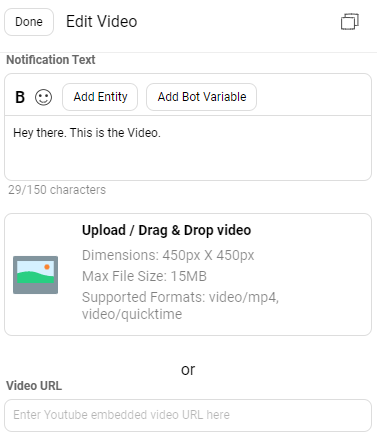
Click Done to finish editing the Video HSL element.