After selecting the step on which the entity is to be added, click on "Add an Entity":
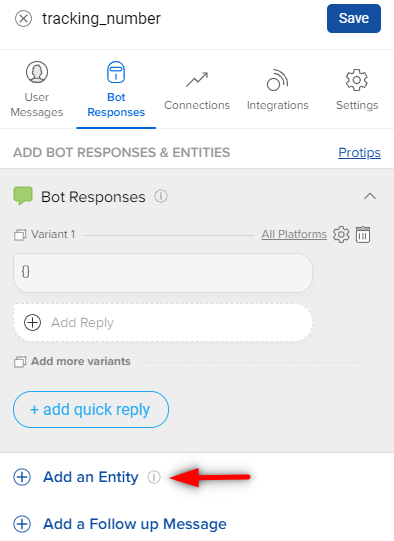
On the popup below, one can search for an entity, from the already existing list of entities.
Simply click select on one of the existing entities to add it to your Step. If you no longer require an Entity, you can delete it. Click here to learn more about deleting an Entity.
Note:
- Entities use the first 150 characters from the bottom because the previous context tags do not capture the context if the context is before 150 characters. So, when you add a new message at the end, you also need to add it to the previous context tags, for the entities to capture it.
If your entities are not getting captured, you can refer to the below video.
Instead of adding an Entity, you can also copy an Entity. Learn more about it, here.