Freshdesk Knowledge Base (KMS)
Let us first understand what a KMS is. KMS stands for Knowledge Management System. It is a tool that is used by businesses to help organize their documentation, or in other words Knowledge Base, which includes documents related to their business-specific use cases, as well as the frequently asked questions, and other information. These documents are stored in easily accessible formats for both internal as well as external users.
Freshdesk is a customer support software that allows you to create a Knowledge Base, where you can create and store document tutorials, DIY guides, and answers to frequently asked questions in one place. You can read more about it, here.
How does Freshdesk Knowledge Base Integration with Haptik help the users?
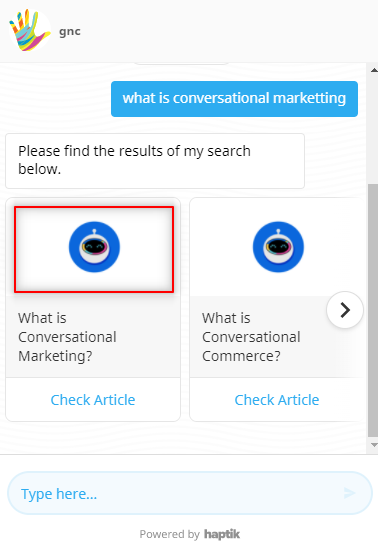
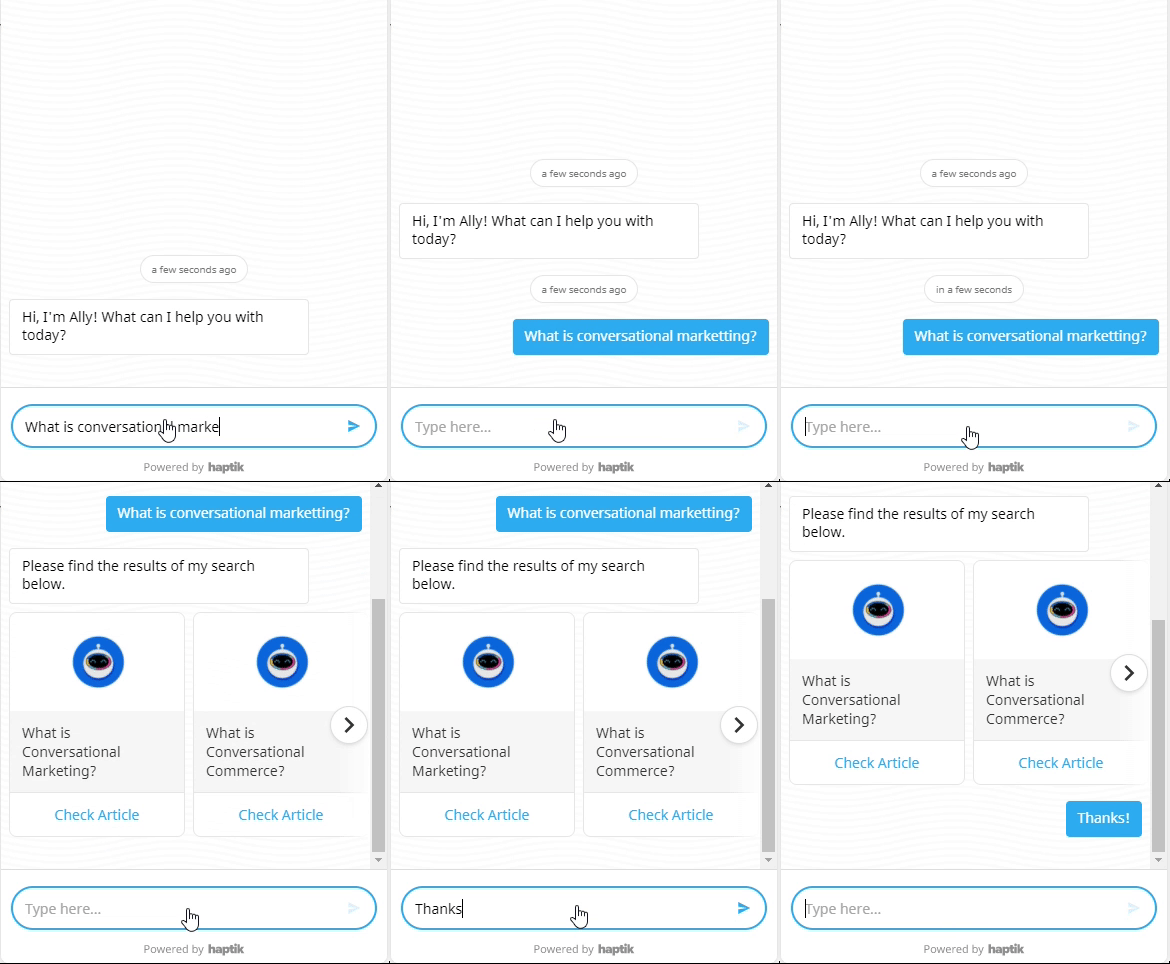
Once this integration is enabled, every time a user asks a query on your bot, the bot will respond by suggesting relevant articles from your Knowledge Base on Freshdesk, after understanding the intent of the query. We will understand this in detail, in the further sections of this article.
Prerequisites for integrating Freshdesk Knowledge Base with Haptik
- A paid account on Freshdesk. You can check the pricing, here.
- A Knowledge Base on Freshdesk KMS. You can learn more about creating a Knowledge Base on Freshdesk, here.
- A bot on Haptik. You can learn more about creating a bot, here.
Note:
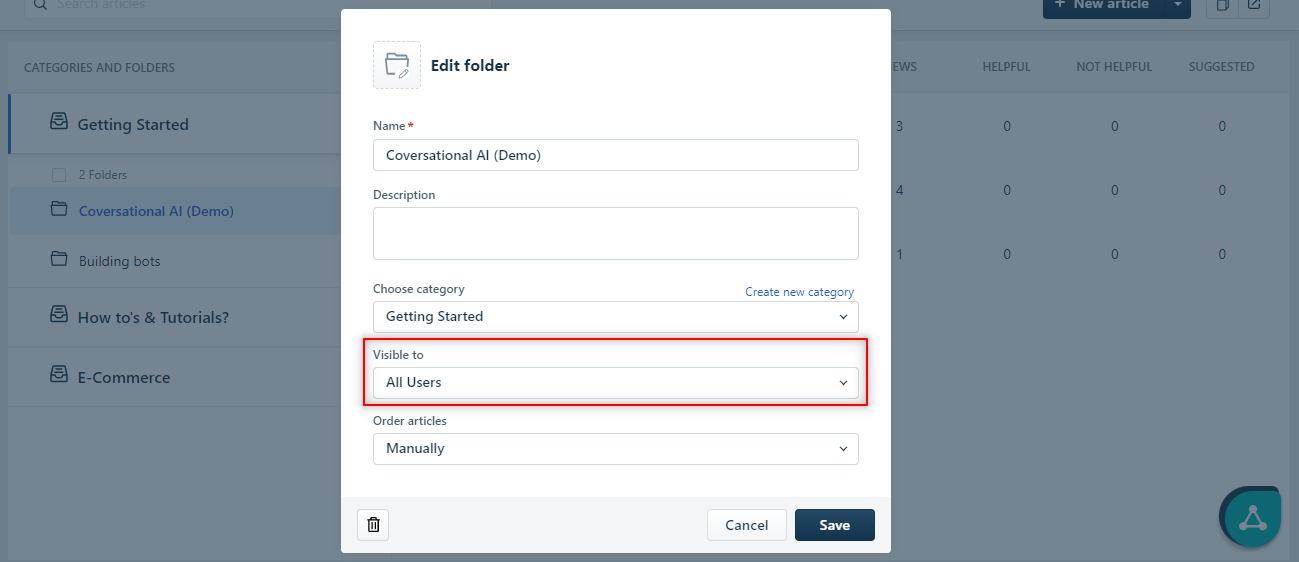
The bot gets trained on the Knowledge Base articles which meet both the criteria on Freshdesk as mentioned below.
- Articles under Folders where the visibility is set to All Users
- Articles that are in Published state. The bot does not get trained on Draft articles.
How to set up?
Once you have all the prerequisites ready with you, all you need to do is integrate your Freshdesk Knowledge Base with Haptik. For connecting them, you would need to add integration details to the Platform Deployments section on Haptik.
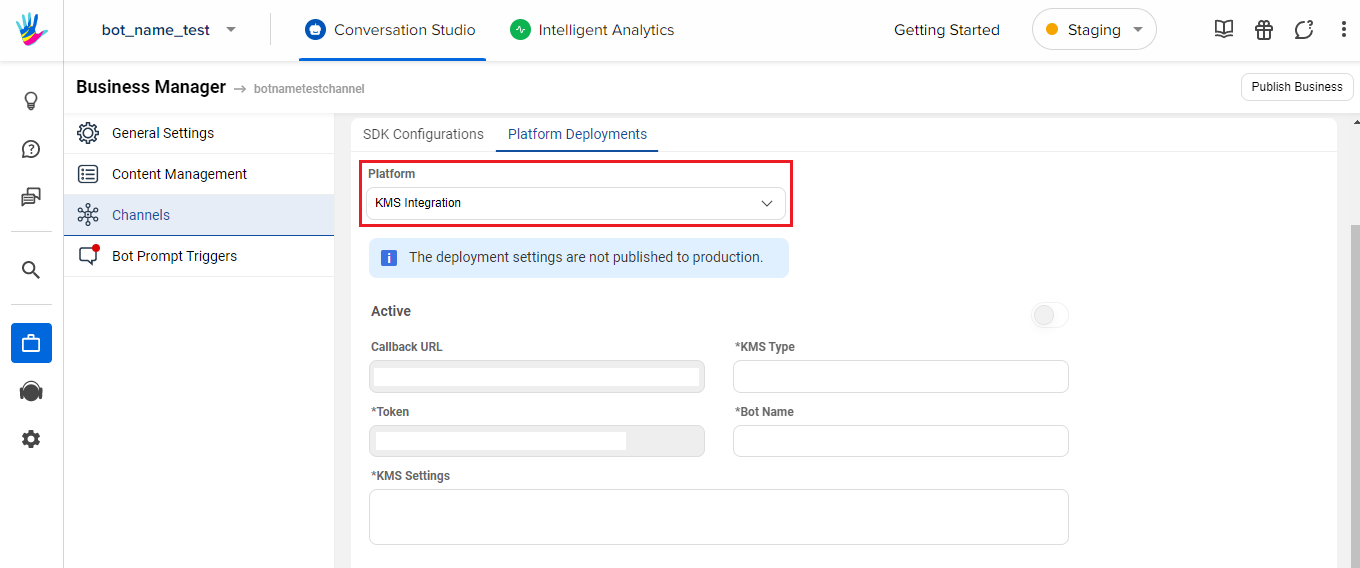
Step 1: Log in to Haptik, open your bot and navigate to Conversation Studio > Business Manager > Channels > Platform Deployments, and select KMS Integration from the Platform dropdown, as shown.
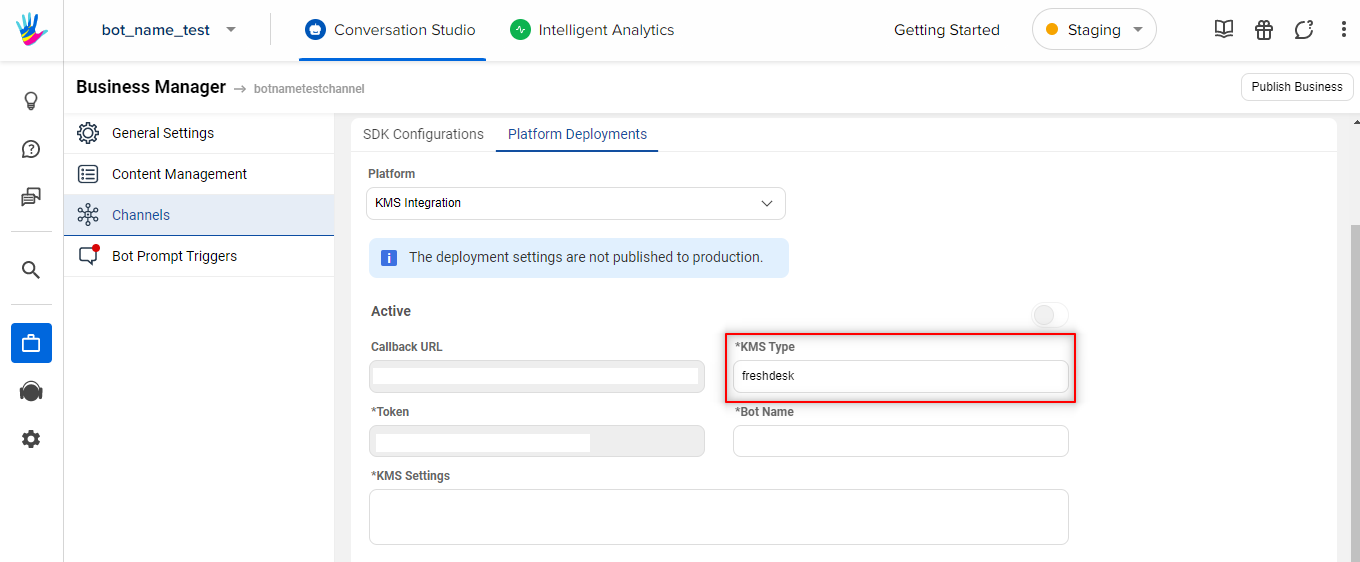
Step 2: Add freshdesk in the field KMS Type.
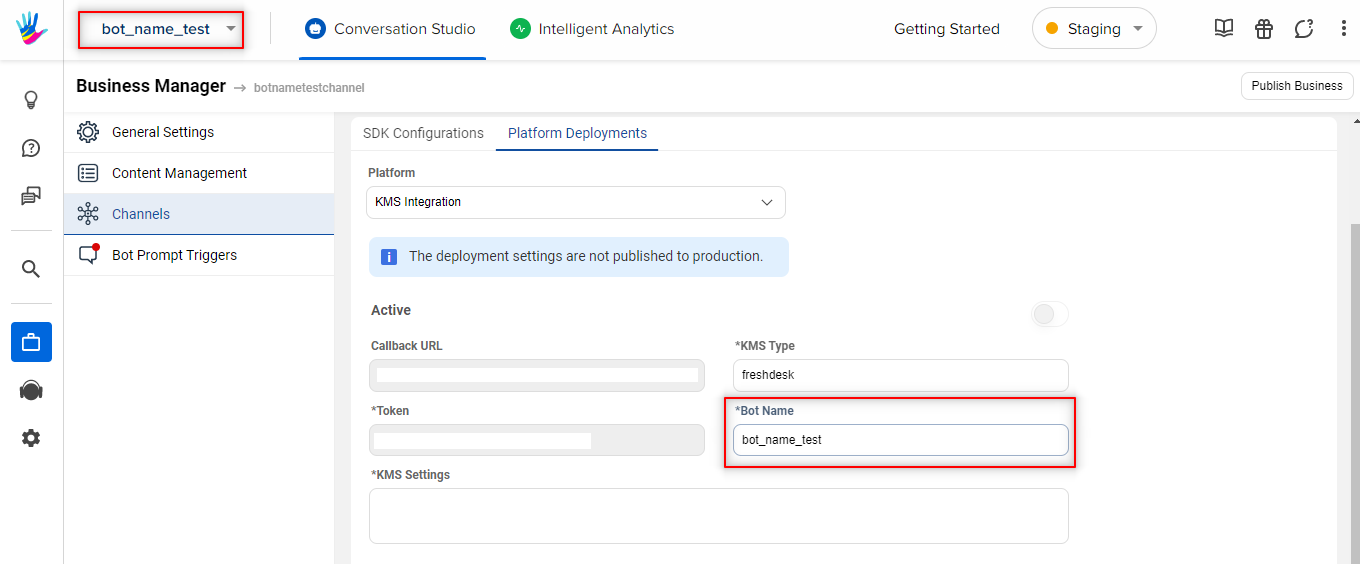
Step 3: Add your bot's name in the field Bot Name. Make sure you have added the name accurately.
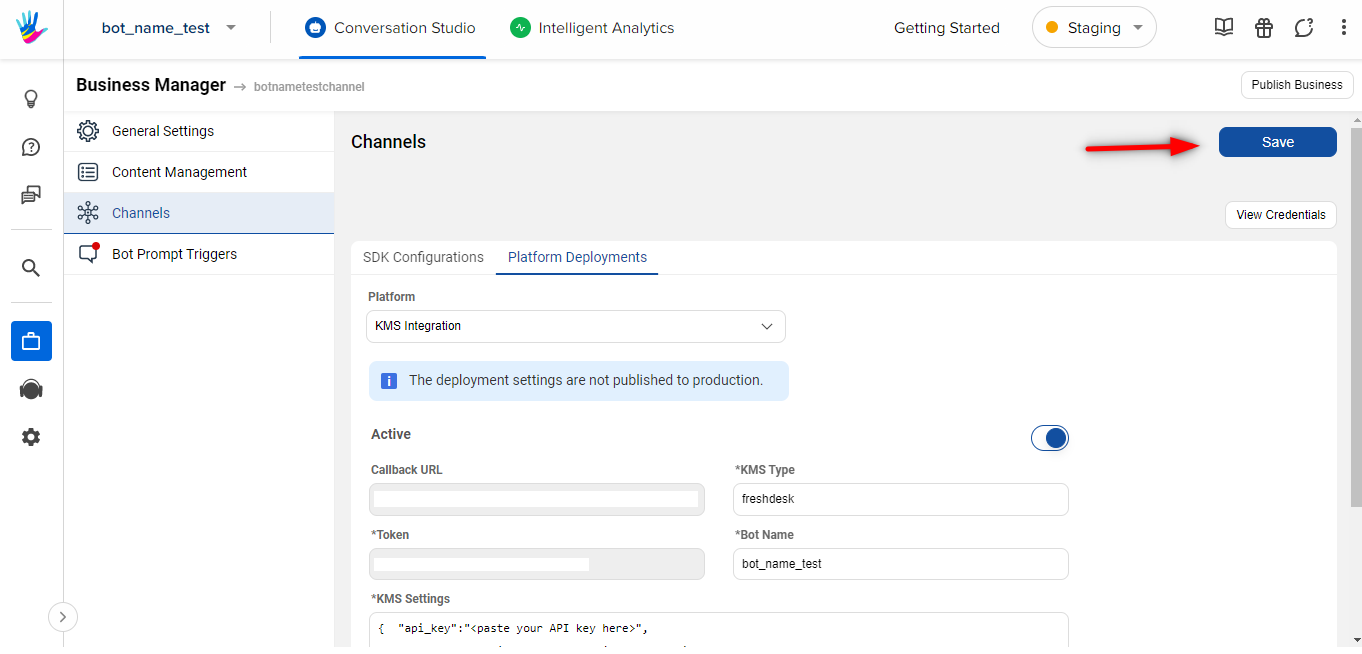
Step 4: Turn the Active toggle button on.
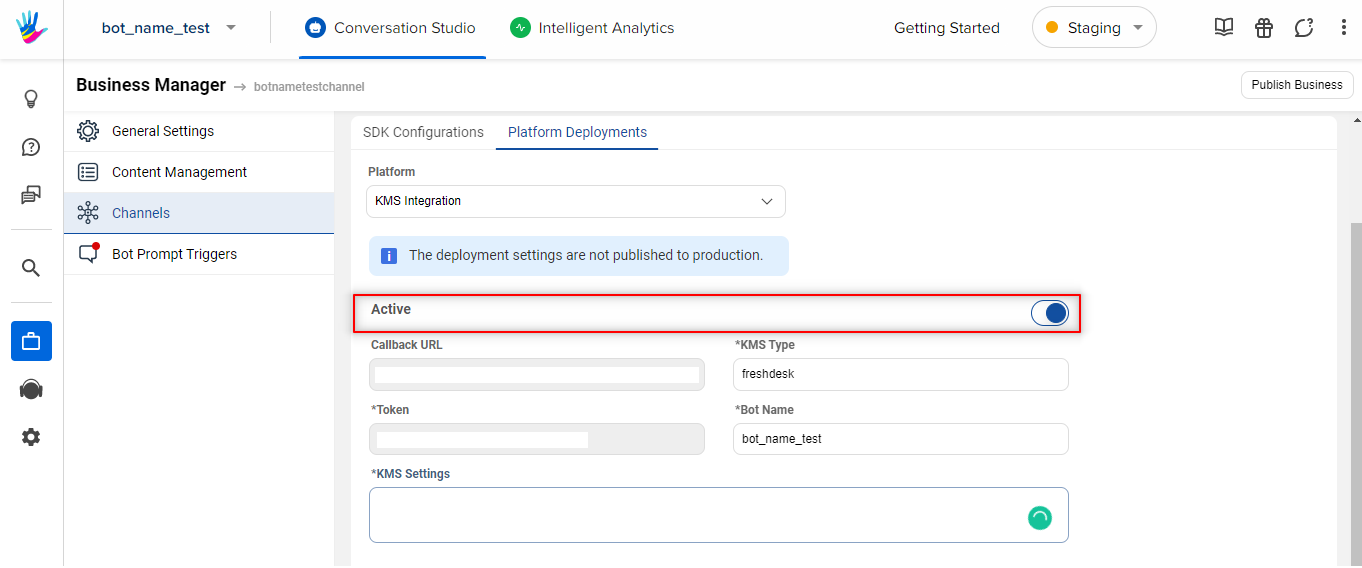
Step 5: Under KMS Settings, enter the following JSON as per the instructions.
{
  "api_key": "<paste your API key here>",
  "freshdesk_domain": "https://<your_subdomain_name>.freshdesk.com",
  "default_thumbnail": "https://haptikappimg.haptikapi.com/kms.png"
}
Following are the steps for retrieving api_key and freshdesk_domain from Freshdesk.
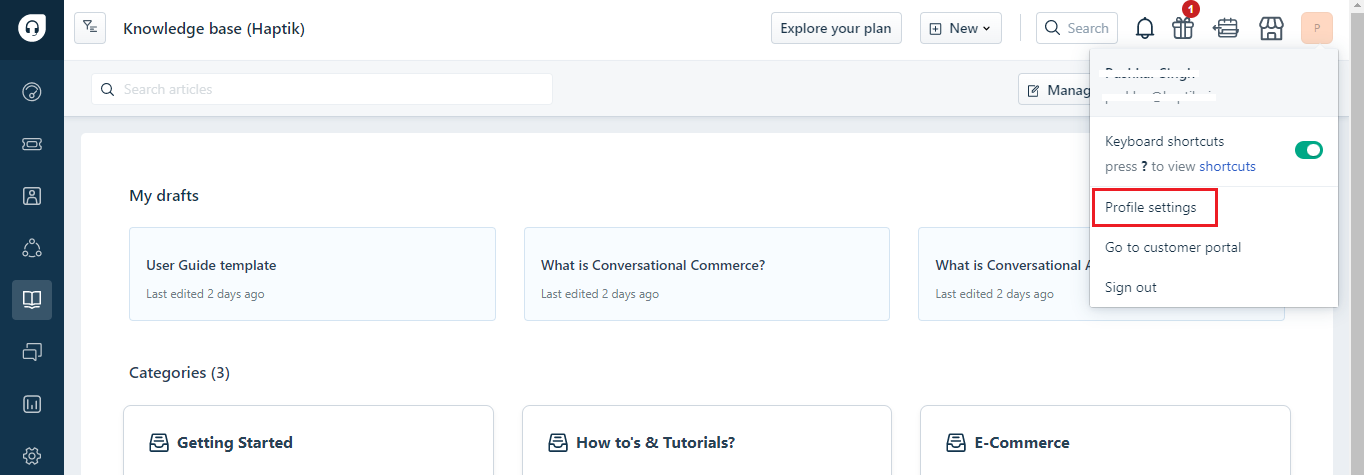
- To acquire the api_key, navigate to your Freshdesk dashboard > Profile settings, as shown.
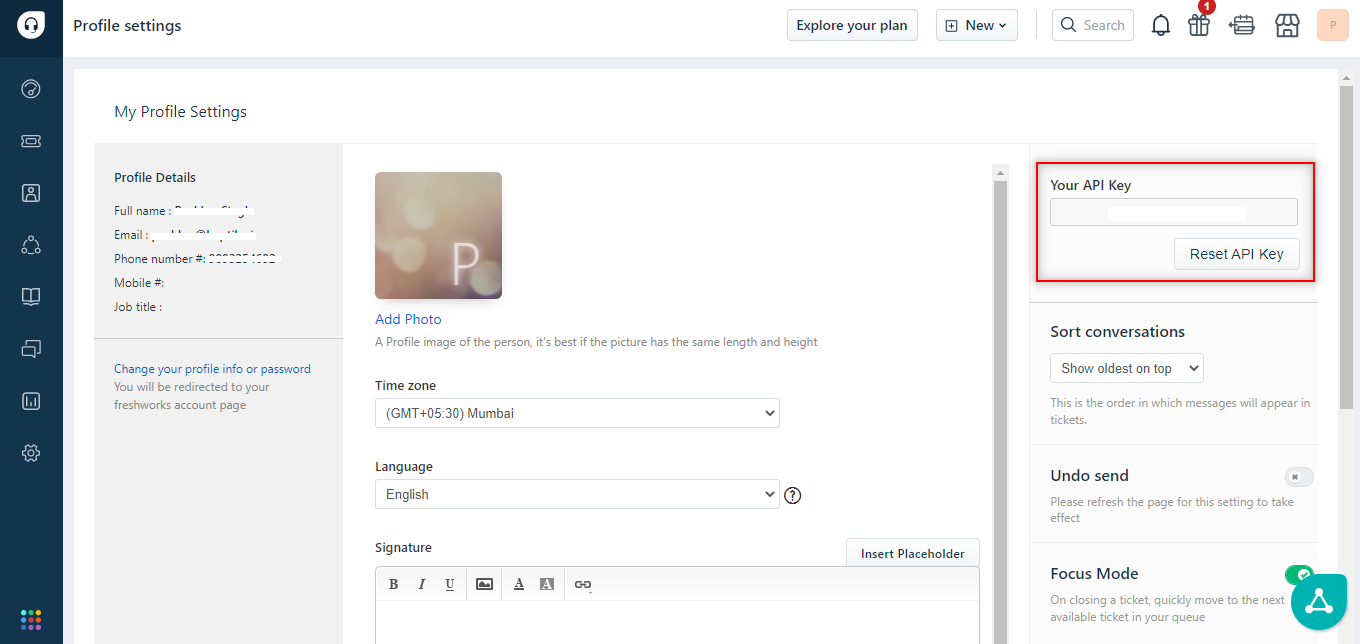
- Under Profile Settings, you will get the api_key, as shown.
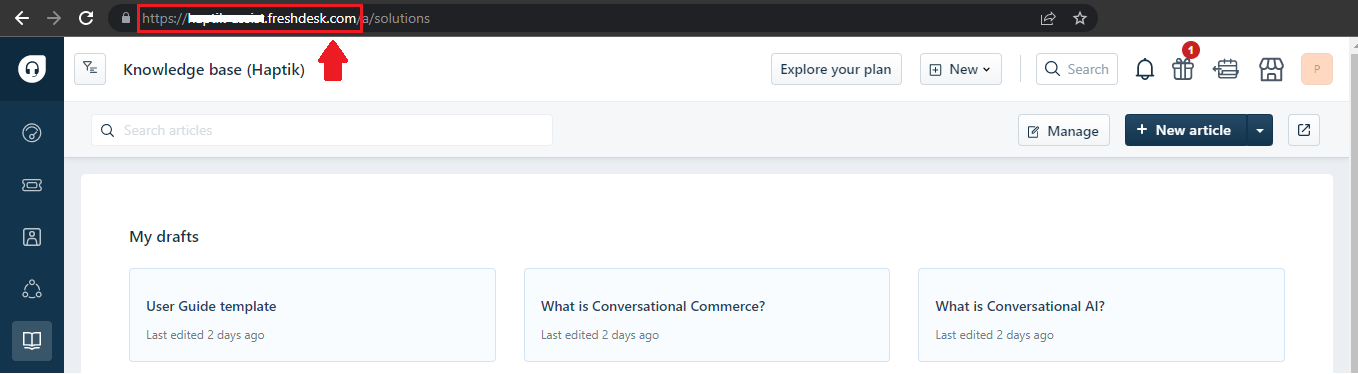
- To get the freshdesk_domain, you can copy the URL as shown.
-
default_thumbnail will be the thumbnail URL, that will be used in the carousel when the bot will display the articles.
Once you have the api_key and freshdesk_domain, update the JSON under KMS Settings as shown.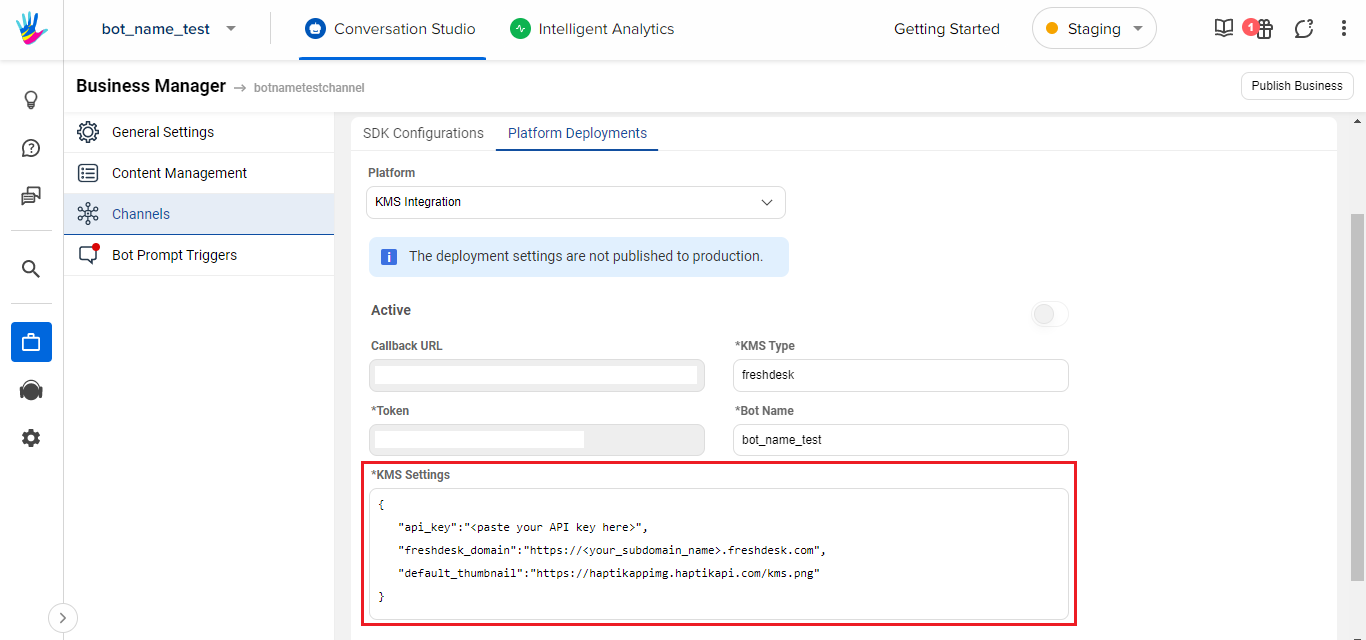
Step 6: Once you have populated all the fields in the Platform Deployments, with the appropriate details in it, you can Save it.
Step 7: You will have to raise a Support Ticket on the Haptik portal or drop an email at support@haptik.ai, for activating the KMS feature on your bot. Please mention your bot's name on the ticket. This is a one-time activity, and it will take at the most 1-2 business days for activating this feature.
Point to note:
Haptik syncs articles from your Knowledge Base every 24 hours at midnight, to ensure that the bot is up-to-date with the latest content changes.
Once the KMS integration is activated on your bot, you are good to test your bot and see how it fetches the articles from your Knowledge Base added on the Freshdesk.
Once tested, you can move your bot to Production Environment, where you can take it LIVE for your users. Congratulations!
Note:
The bot will suggest Knowledge Base articles in the following order of prioritization
Steps in the bot > FAQs added > Knowledge Management System
What this means is, if a user asks a query to the bot, and if there is a Step present in the bot for handling that query, the bot will fetch the response from that Step. If there is an FAQ added in the bot, then the bot will fetch the response to the user's query from the FAQs.
If none of the two mentioned above are present, that is when the bot will fetch the response from the Knowledge Management System and will suggest appropriate articles as a response.