This feature can be used to search for users who have had conversations with your business. You can look for them by their name or email address, to search for their previous conversations or detailed information.

Select your Account name from the dropdown as shown below -

In the Search Bar, you can type the relevant information about the user, either their email address or phone number.
Provide the exact text, for example, if you want to search the user with an email abc@test.com then type the exact email address in the Search Bar.
Avoid using irregular search terms such as 'ABC and others.
Once you have provided the information, the table will be populated with the relevant information about the user.

The table contains the following information -
- User Name: The name of the user.
- Email id: The email address of the user.
- Phone number: The phone number of the user.
- Last conversation: The date and time when the user had the last conversation with the business.
- Platform: The channel on which the user had the last conversation (iOS, Android, Web SDK, and others).
-
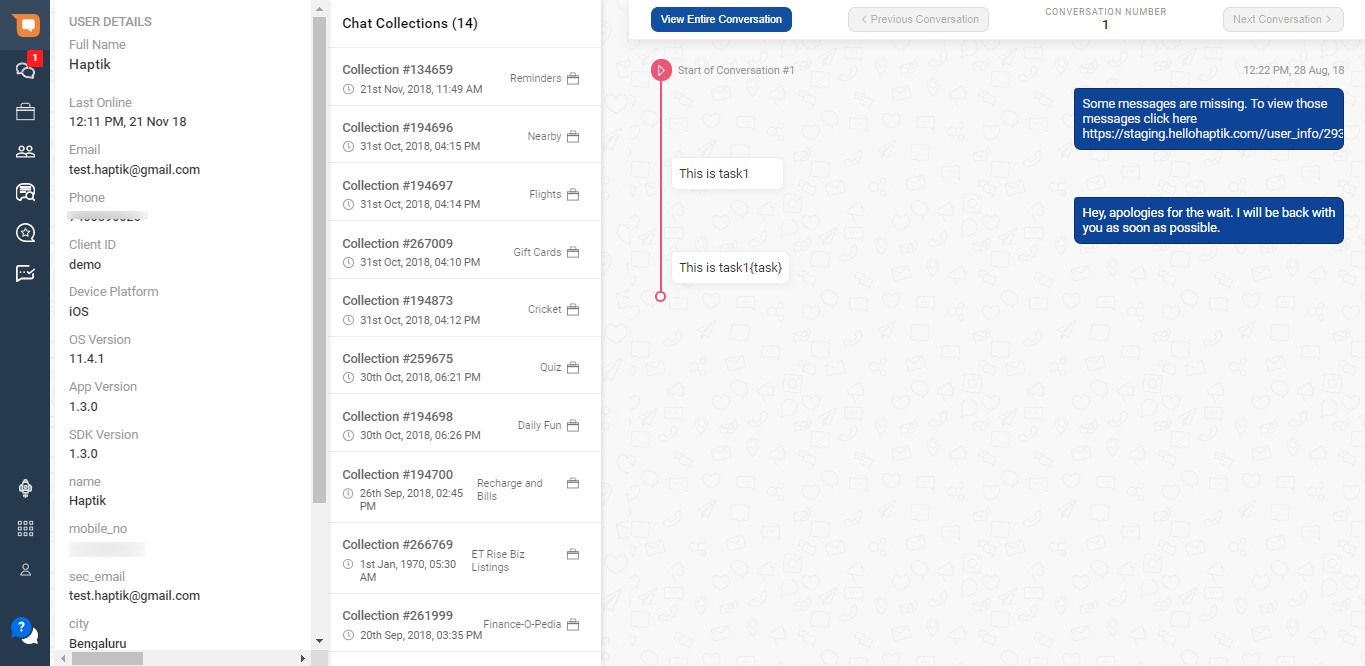
Matched custom info: This column mentions what information was used to fetch user details. In the above example, the value provided in the Search Bar is Haptik which matched with the name, as seen in the user details section, and hence the Matched custom info column has the value name.
This information is collected as part of the user journey and displayed under the user details section on the left side of the chat links.The following view of the chat link requires appropriate permissions. Please read here to know more about permissions required to view user's personal information.
-
Conversation count: The total number of conversations users had with the business.
- Clicking on the row will open the chat link.
- When the number of Conversation count is greater than 0, you can click on the row to check the conversations.
- When the user has not completed any conversation, the count will be 0.
If the user with the same email and phone number is showing twice, this means the user is registered two times.
In case of a match of email, phone number, and user name which are collected as part of SDK the Matched custom info will be shown as empty.
When there is no relevant information found related to the information provided in the Search Bar, you will see a screen as shown below -

Provide the exact text, for example, if you want to search the user with an email abc@test.com then type the exact email address in the Search Bar.
Avoid using irregular search terms such as 'ABC and others.