Overview
Haptik lets you add users with specific permissions to prevent misuse and protect sensitive information. We’ve taken one step further by introducing IP whitelisting feature for data security.
Once enabled, users won’t be able to use your Haptik account if they are on a different IP address that is not part of the whitelist. The major plus point is that users, even with the highest access, will be unable to access your Haptik account if their IP address is not included in the whitelist.
Business owners prefer IP whitelisting so that they can limit access only to their office locations.
Our system periodically checks for network changes and blocks the changed IP address if it is not whitelisted. This may happen if a user accesses a Haptik account when being under a whitelisted IP address network, but later moves to an excluded IP address.
Steps to Use IP Whitelisting
- Log in to your Haptik account.
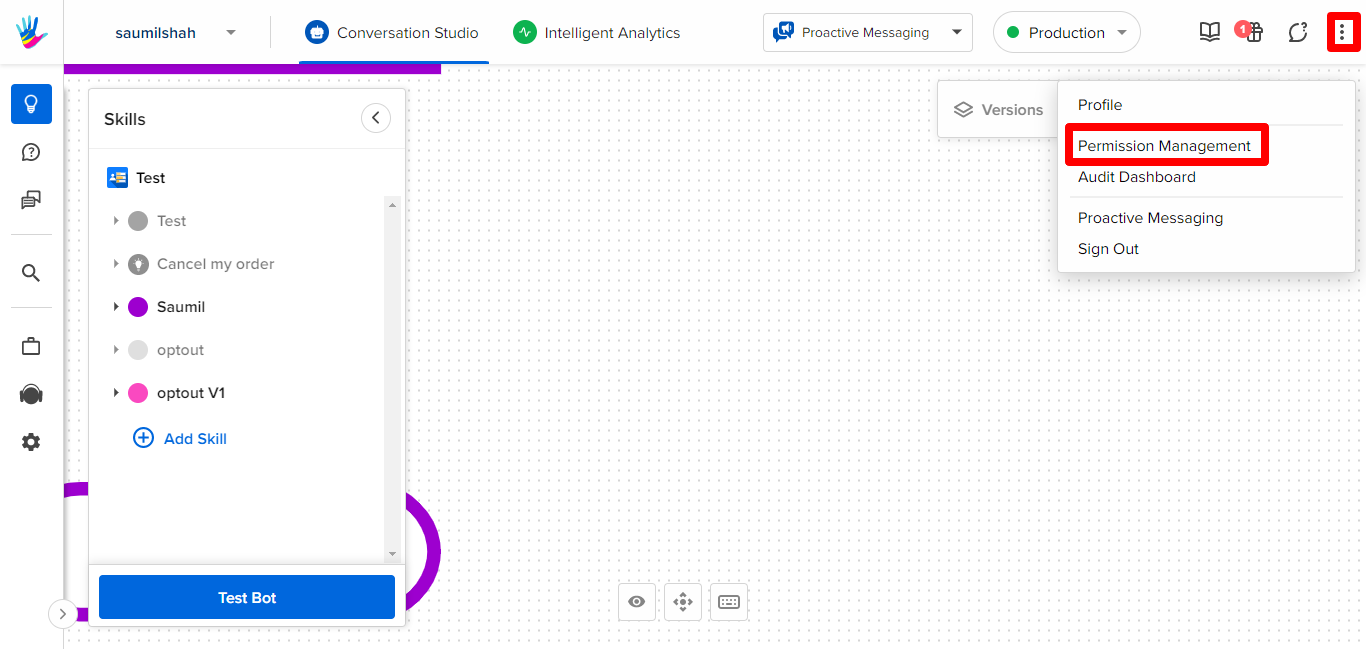
- Go to the top right corner and click the vertical ellipsis (⫶) to select Permission Management.
- Click IP Whitelisting to see the vacant field in which you need to add IP addresses on which invited users can use your Haptik account.
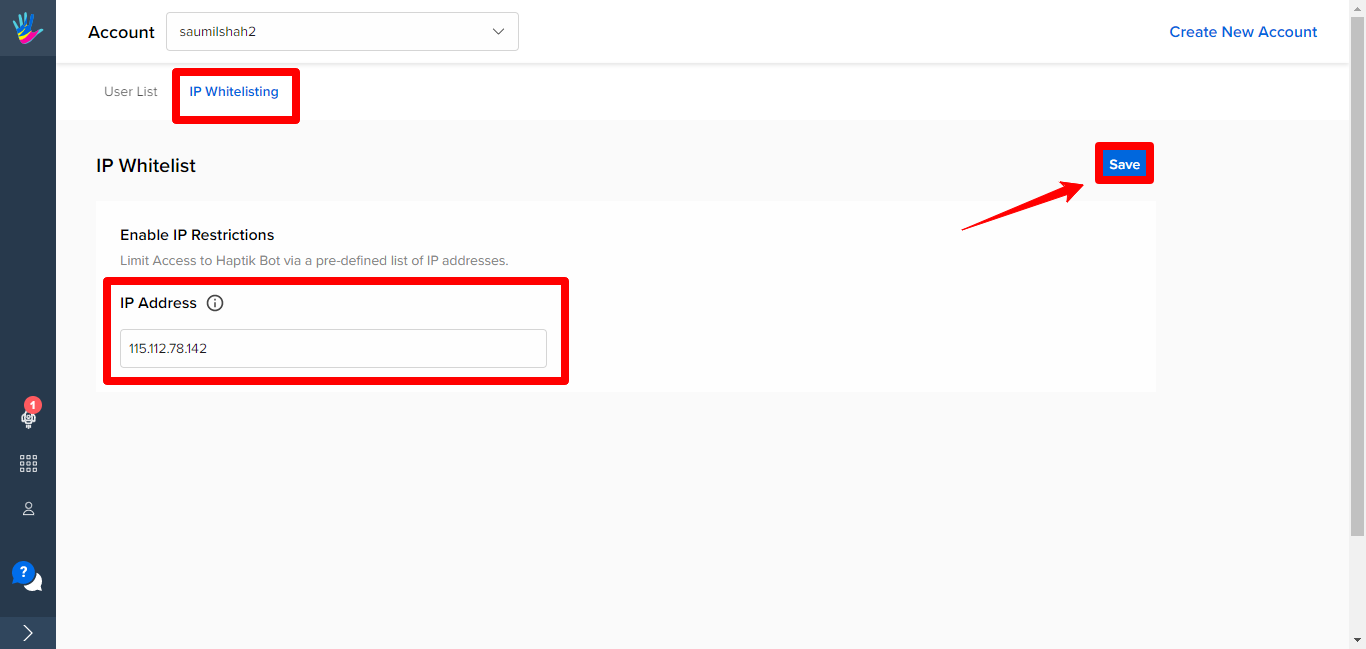
- Click Save to save the changes made. Your IP whitelisting is successful.
In case you have any questions about IP whitelisting, you can get in touch with your Haptik SPOC.