On the right-hand screen of the screen, agents can -
- View User Details
- Use External tools
- View Previous Conversations
- View Notes

User Details

Understanding the basic details of the user like Name, Phone Number, Email, etc, helps agents understand the background of the user and help users better. This section gives us all those details about the user.
You can read more about this here.
External Tool
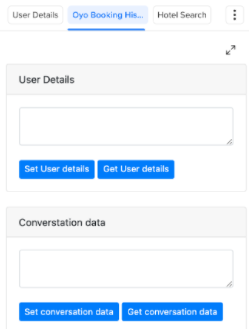
External tools like a ticketing system, CRM, search fields, etc. can be used by agents in this section to solve user's queries further, while they continue to have conversations with users.
These external tools can also be expanded for better usability as shown in the image below -

If there are more than 2 or 3 tools, they will come stacked in a list as shown in the below image -
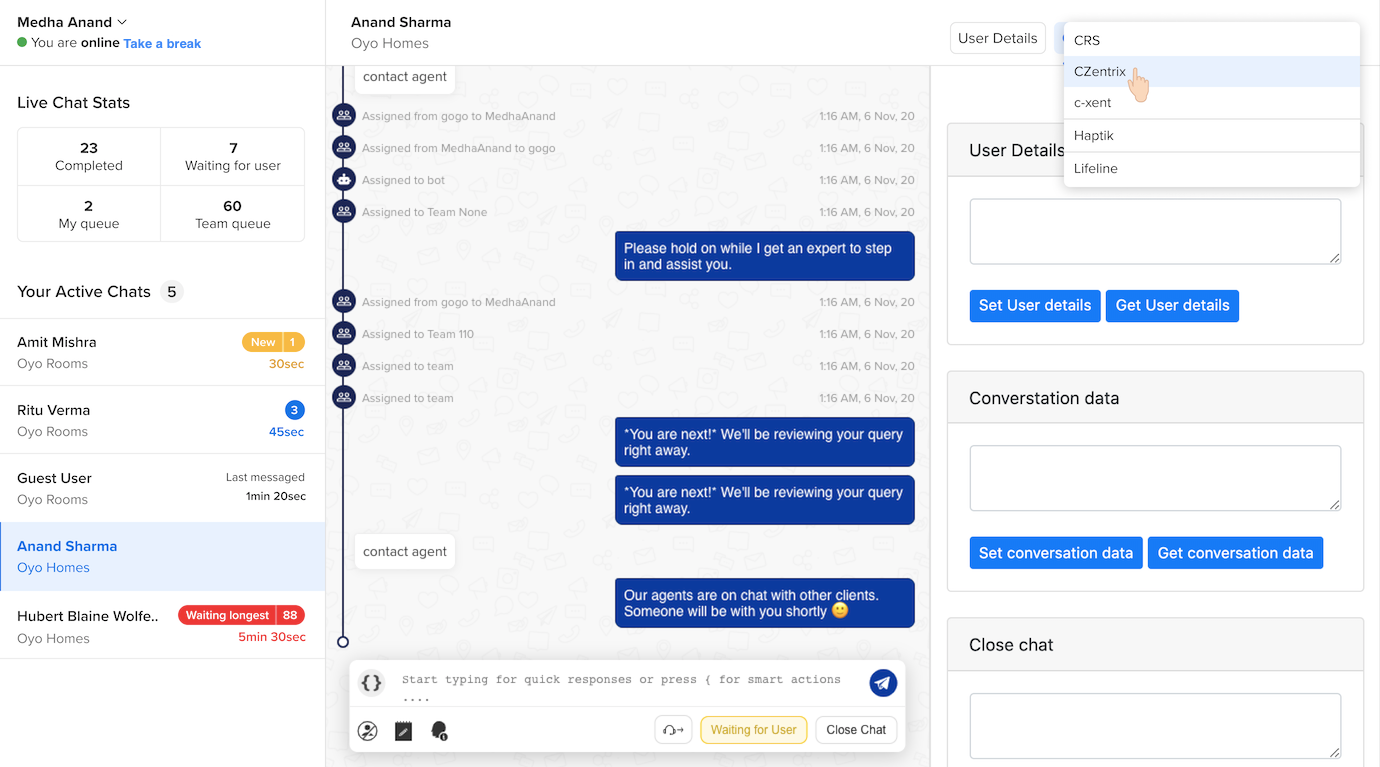
Depending on the permissions and features assigned to a Chat agent user, more actions could become accessible.
We also have a system to enforce Data level permissioning i.e. an agent user is allowed to view/edit data for which business can be controlled using this.
If you want to know how to add an external tool, you can refer here.
Previous Conversations
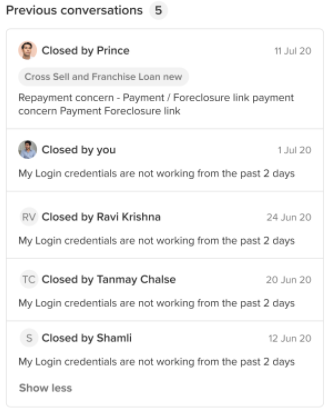
A user might have had multiple conversations with agents at distinct times. Previous Conversations section enables the agent to see these latest conversations of the user. A maximum of 5 previous conversations would be shown.

Once the agent clicks on any of the conversations, the chat link opens up in a new tab. The chat link displays the entire history of the chat which user had with the IVA.
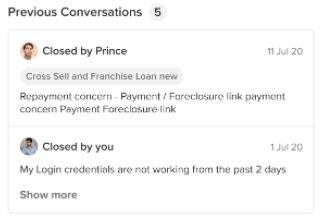
Initially, two latest conversations would be present in the Previous Conversations section. The Show more option allows the agents to view a maximum of 5 previous conversations of the user.
If the user does not have any chat history, the Previous Conversation section will be empty and will appear as follows
Notes
Notes are a stack of all the notes which different agents have recorded while having conversations with the user at distinct times.
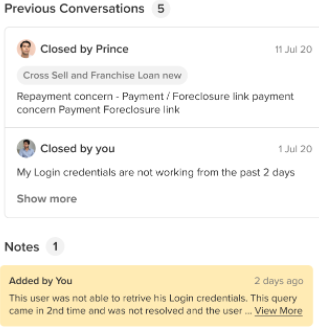
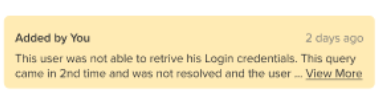
The saved note contains the name of the agent who saved the note. If the note goes beyond 2 lines, a View More Button appears. View More will expose the entire content of the note.
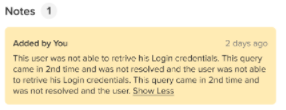
When View More option opens up the entire note, a Show Less option becomes available. Show Less option minimizes the open note.
When there are more than 2 notes present, a Show More option appears on the bottom on the visible notes. Upon clicking Show More all the notes will get displayed in the Notes section.
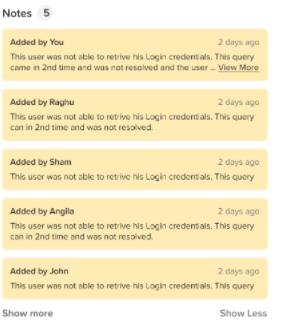
The Show Less option will minimize the Notes content and only display 2 latest notes.
Why am I not able to capture Notes?
If you are not able to capture Notes in the CSV, then the main reason for this is masking of personal information. If you add any account number, phone number, or user's name, then since it is personal information, it will be masked on the CSV. These are detected based on the regex patterns used.
The workaround for this is, if you are adding any personal information in your Notes, separate it using spaces between letters or numbers so that the regex pattern does not detect it as personal information.
For example:
If you want to save this phone number 9888812222,
then you need to add it in the Notes as 9 8 8 8 8 1 2 2 2 2