Overview
Agent Reports can be downloaded on the Smart Agent Chat tool which gives you all the information related to agents and their time spent on the tool. You can analyse your agent's conversations based on various metrics on a granular level. These reports are detailed reports and they cover most of the aspects related to users' conversations with an agent.
Apart from the downloaded Agent Data Report, you also receive Daily Statistics Report over email at the end of every day. You can read more about it in detail here.
Now let us talk about, how to download these agent reports on the tool. You can click on "Email Detailed Report", choose the time frame as shown in the screenshots below and the report would be sent to you over email.
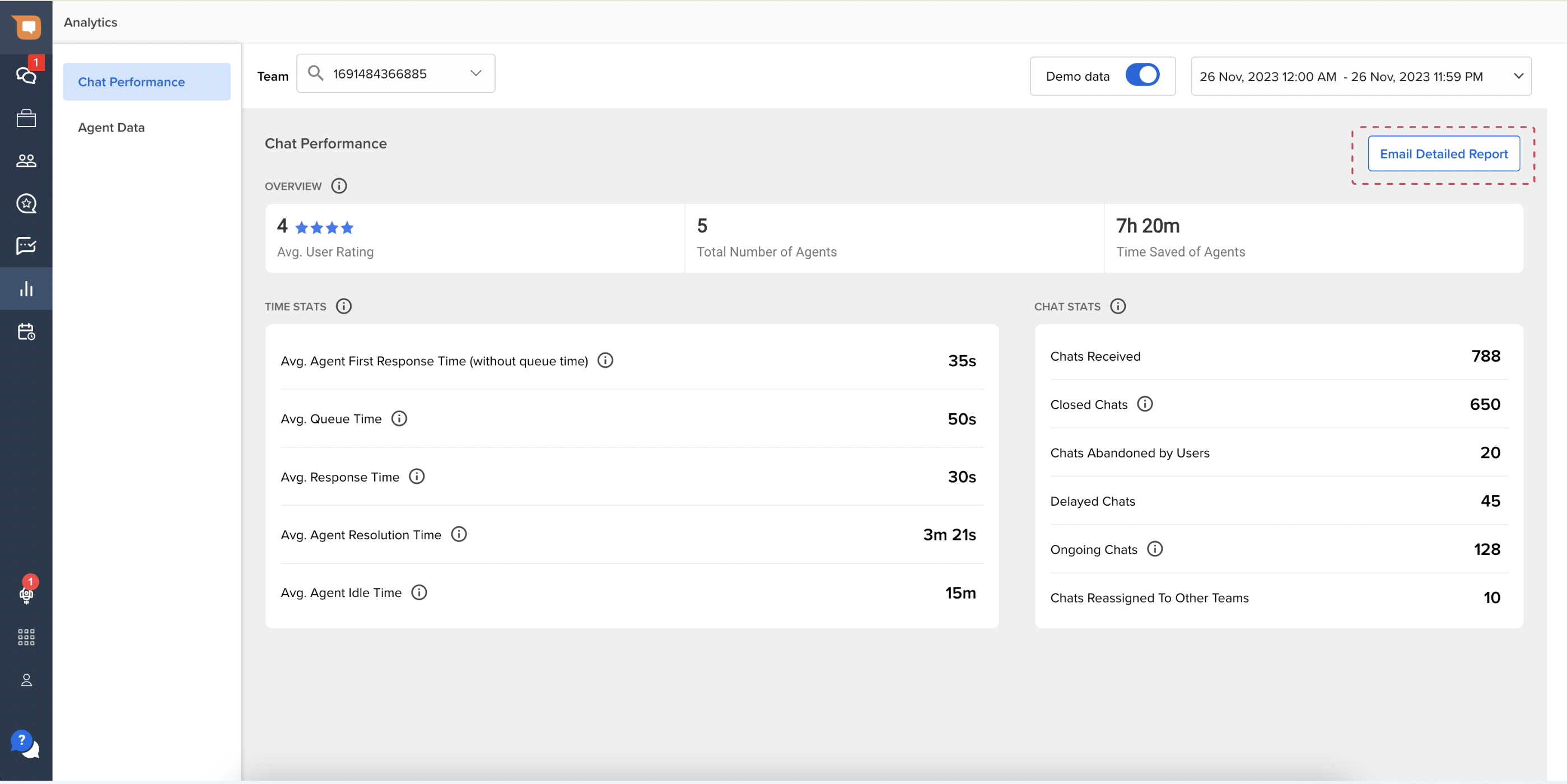
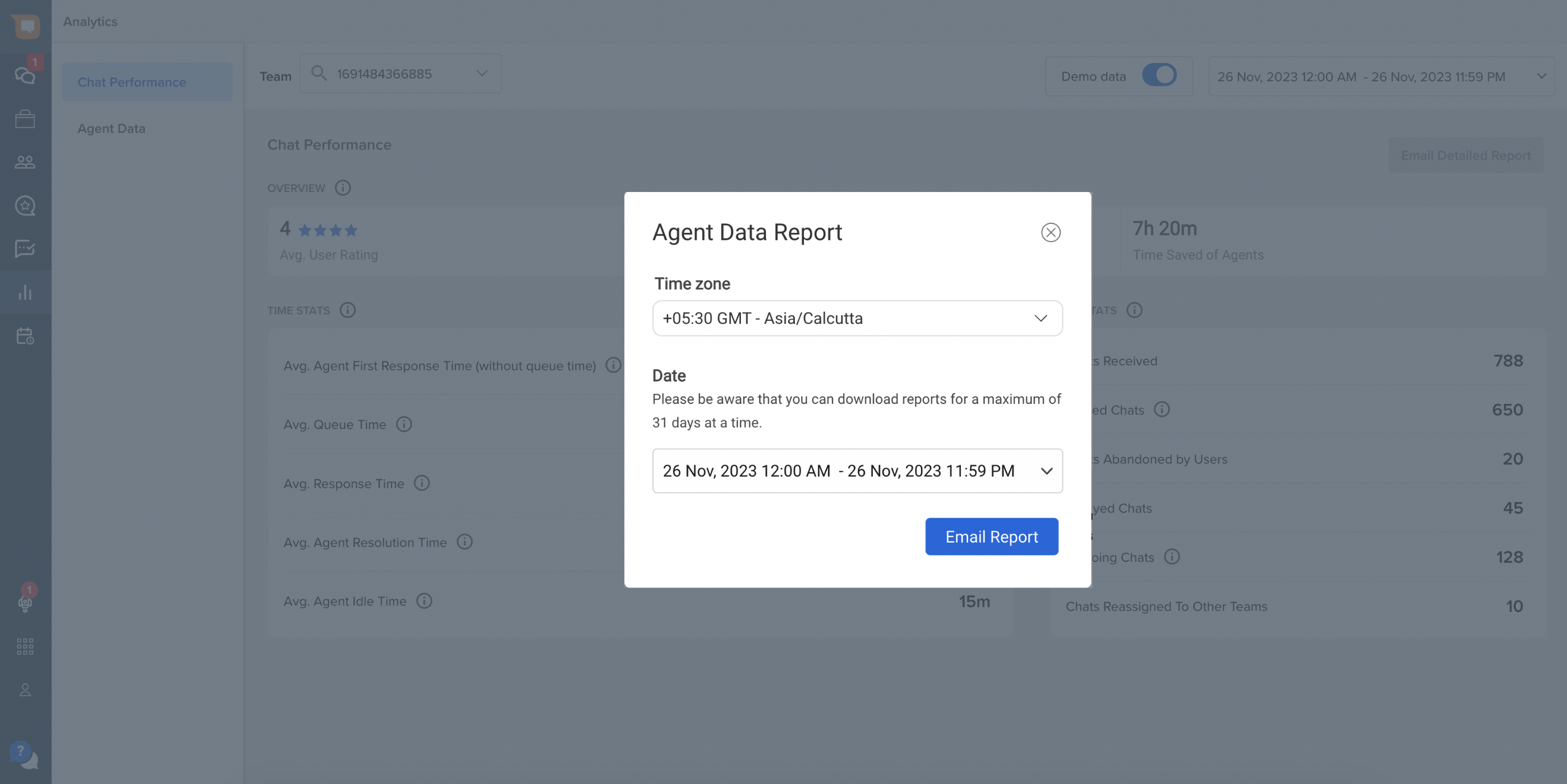
You would receive 9 reports, namely -
-
Chat Data Report (to be replaced with Agent Chat Sessions Report)
Example filename - ‘chat_data_report.csv’ -
Agent Online/Offline Time Report
Example filename - 'agent_online_and_offline_time_report.csv' -
Agent Login/Logout Hours Report
Example filename -'agent_login_and_logout_time_report.csv'
-
Agent Online Hours Report
Example filename - 'agent_online_hours_report.csv' -
Agent Idle Time Report
Example filename - 'agent_idle_time_report.csv' -
Missed Chats Report
Example filename - 'missed_chats_report.csv' -
User Feedback Report
Example filename - 'user_feedback_report.csv' -
Agent Chat Sessions
Example filename - 'agent_chat_sessions.csv' -
SLA Performance Report
Example filename - 'sla_performance.csv'
If you are not able to download the Agent Data Report for a certain time period, try downloading it for a shorter time period. Later, you can merge all the smaller files together.
Missed Chats Reports are relevant only if your Business Operational Hours are not set to round the clock support, i.e., 24/7. Read more about setting up your business operational hours.
Refer to this article for detailed guidance on the data available in each report.
Tips to Manage a Team using Reports
✅ Track No. of Delayed Chats and optimize agent strength per Team
✅ Track No. of Live Chats received at a given time
✅ View Response Times for a given time frame to monitor agent performance
✅ View Resolution Times on a Team/Agent level
✅ View Individual Chats to get quality feedback
✅ Analyze end of day Team-wise analytics values here.