Overview
Delivery-related concerns are common for e-commerce businesses because customers usually want to know whether their order will reach the expected place at the right time. Well, you can handle this kind of expectation with ease as you just need to add our newly-created smart skill i.e. fetch address details to your Haptik bot.
Simply put, address messages are interactive messages designed to ease up the address-capturing process for businesses.
Note: This feature is only available for business numbers in India (+91) and Singapore (+65).
Key Features
- We can initiate the address message with call to action that opens up the form.
- We can pre-fill fields e.g. PIN code or city or country etc. that already known to us.
- We can also send along saved addresses. In this case, WhatsApp will prompt the user with an option to select among the saved addresses or add an address option.
- We can make use of validation_errors by which businesses can throw errors in the address fields and WhatsApp will prevent the user from submitting the address until the issue(s) are/is resolved. This validation is done upon submitting the form on the server side.

Below table outlines which fields are supported in which country specifically.
Field Name |
Display Label |
Input Type |
Supported Countries |
Limitations |
name |
Name |
text |
India, Singapore |
None |
phone_number |
Phone Number |
tel |
India, Singapore |
Valid phone numbers only |
in_pin_code |
Pin Code |
text |
India |
Max length: 6 |
sg_post_code |
Post Code |
number |
Singapore |
Max length: 6 |
house_number |
Flat/House Number |
text |
India |
None |
floor_number |
Floor Number |
text |
India |
None |
tower_number |
Tower Number |
text |
India |
None |
building_name |
Building/Apartment Name |
text |
India |
None |
address |
Address |
text |
India, Singapore |
None |
landmark_area |
Landmark/Area |
text |
India |
None |
unit_number |
Unit number |
text |
Singapore |
None |
city |
City |
text |
India, Singapore |
None |
state |
State |
text |
India |
None |
Using Address Messages on Haptik Platform
A Send Address Capture HSL has been defined on the platform to trigger Address Messages on WhatsApp bots. This HSL will be composed using Message details (header, footer, body), Saved Addresses, and any Pre-Filled Values. Below is a sample raw JSON to be used to trigger a Address Message as a Bot Response.
{
  "type": "WHATSAPP_ADDRESS_MESSAGE",
  "header": "Header text goes here",
  "text": "Body of the Address CTA messages goes here",
  "footer": "Footer text goes here",
  "action": {
    "name": "address_message",
    "parameters": {
      "country": "IN",
      "values": {
        "name": "Viki",
        "phone_number": "9988776655"
      },
      "saved_addresses": [
        {
          "id": "address_id",
          "value": {
            "name": "CUSTOMER_NAME",
            "phone_number": "+919876543210",
            "in_pin_code": "11001",
            "house_number": "104",
            "floor_number": "3",
            "tower_number": "1",
            "building_name": "Delhi Tower",
            "address": "Janpath Rd Janpath",
            "landmark_area": "Khurshid Lal",
            "city": "Delhi"
          }
        }
      ]
    }
  }
}
The HSL has been further packaged in Smart Skill to capture end-to-end flow and faster implementation.
Steps to Use Address Capture Smart Skill
- Log in to your Haptik account and choose the bot to which you want to add a smart skill.
- Click on Add Skill and enter send address wa (Generic) in the search box. Once you find this option, click it to proceed further.
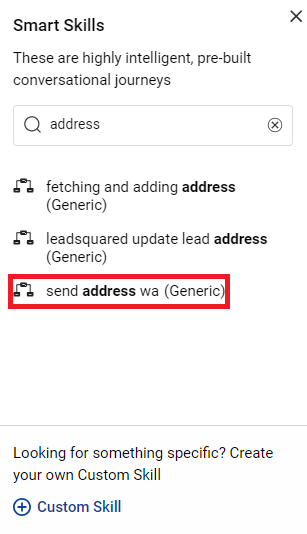
- A pop-up with relevant details appears. Click on Add Smart Skill to add it to your bot.
In case you are unable to proceed in any of the steps above, contact your Haptik SPOC.