We create a connection from one Static Step to another Static Step, so as to have a flow of conversation from one Static Step to another Static Step.
For example, let us consider these two Steps here "Capture business name" and "find business name".
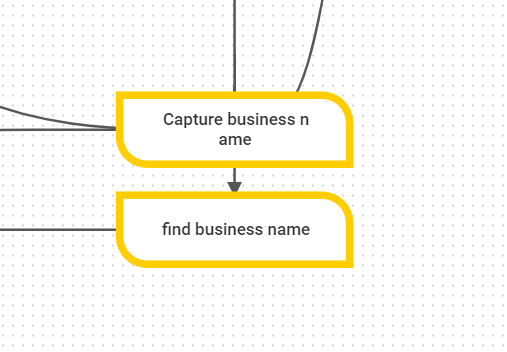
Here, initially the Step "Capture business name" will collect the business name from the user, and once it gets the business name, the bot will then move to the next Step, that is "find business name"
So basically, the bot will use the data collected from the Step "Capture business name", for finding the business name in its database using the "find business name" Step.
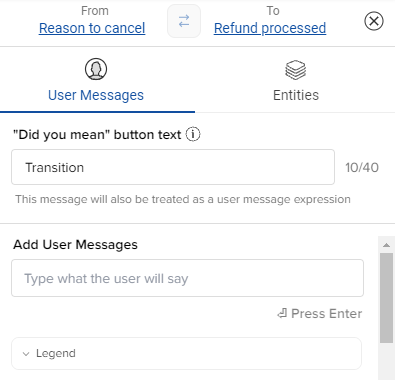
The connections you create can prompt a user to transition from one step to the next in the following two ways:
1. Transition based on messages sent by the user (User Messages based Connection):
This is when a conversation moves from one step to another based on a particular keyword/phrase or set of keywords sent by a user.
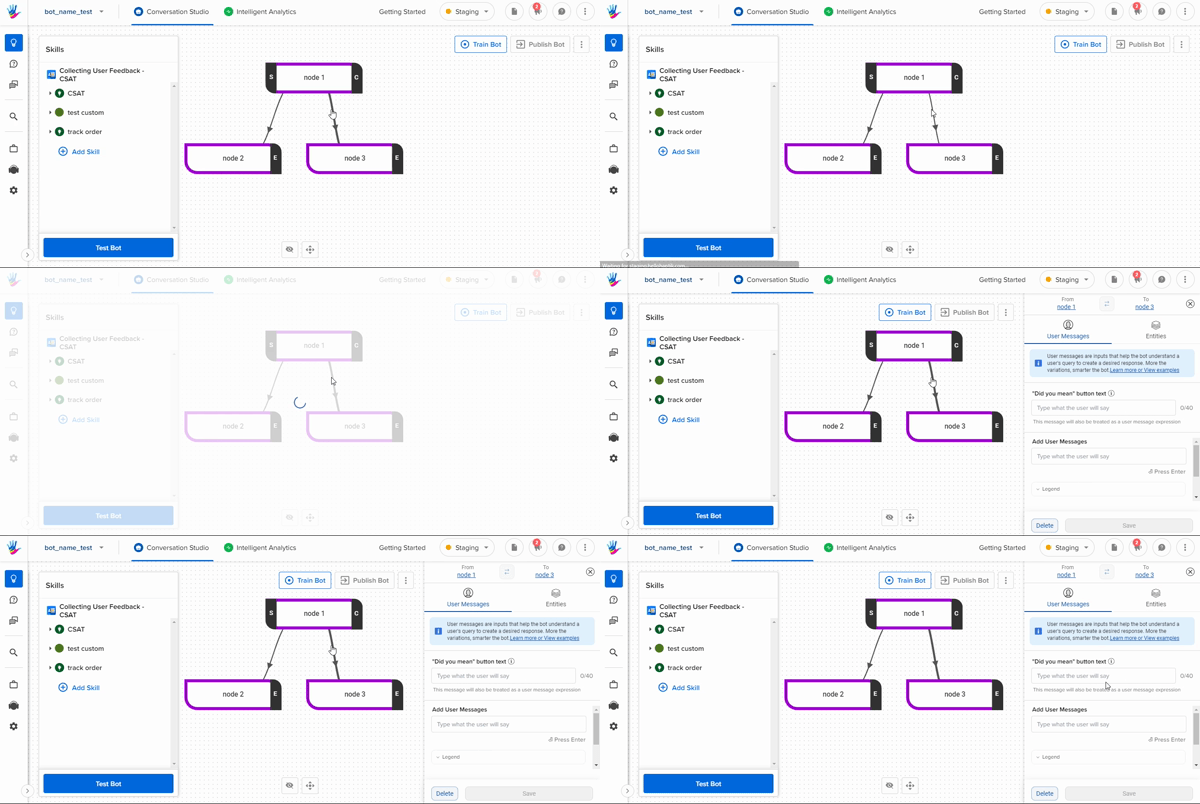
- To set a connection based on user input, click on the arrow linking the two steps you need to connect
- The User Messages tab opens up, here you can add the user variations as shown below -
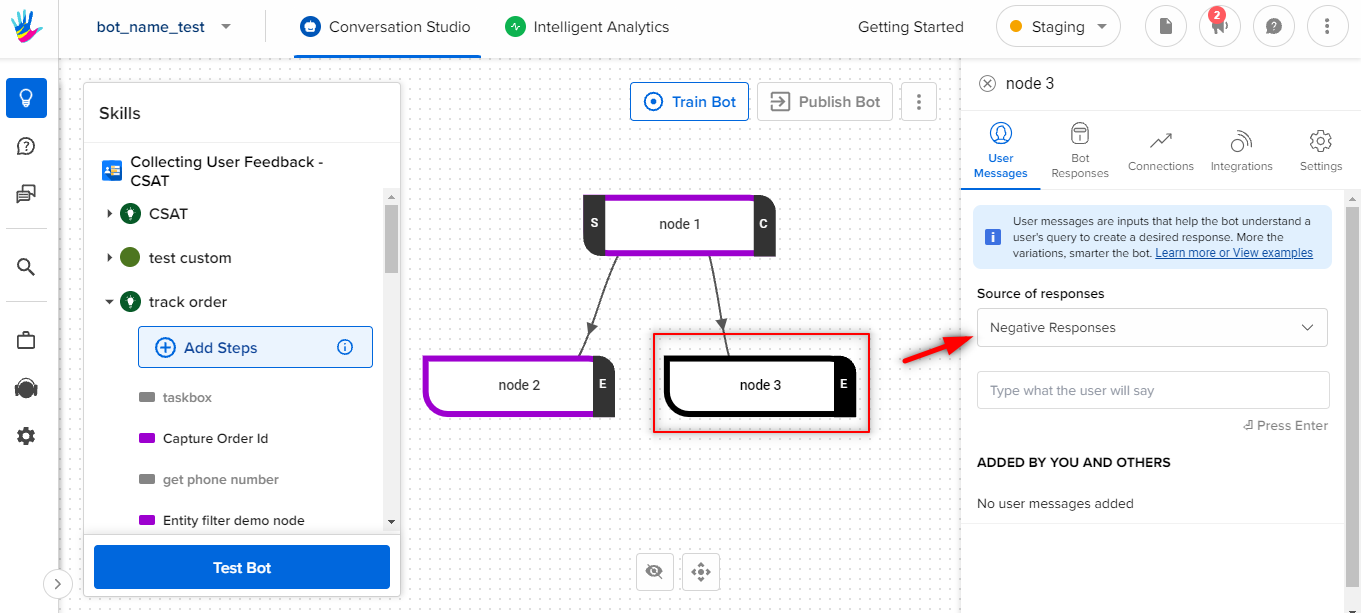
The User Messages section on the connected step (a non-start step) will only contain Negative Responses as the Source of responses. Negative Responses are the User messages for which you do not want the connection to happen. This is being shown in the image below.
2. Transition based on values of entities given by user (Entities based Connection):
You can create a connection between two steps on the basis of the values collected from the user in the forms of Entitites.
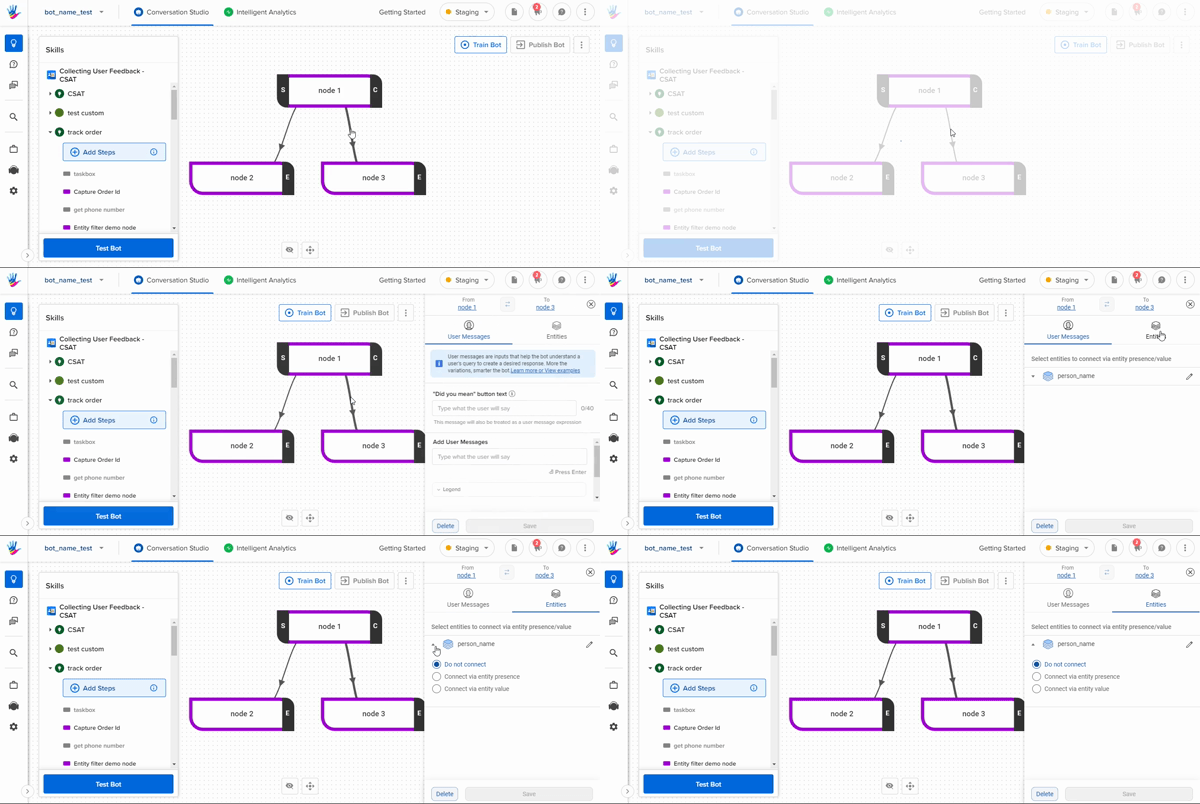
There are 3 options when you open the Entities tab on the Connection line.
-
Do not connect:
-
This option will not use the selected entity for the connection. For example, if you do not wish to connect Step 1 to Step 2 on the basis of person_name, you can select the Connection as Do not connect.
-
This option will not use the selected entity for the connection. For example, if you do not wish to connect Step 1 to Step 2 on the basis of person_name, you can select the Connection as Do not connect.
-
Connect via entity presence:
-
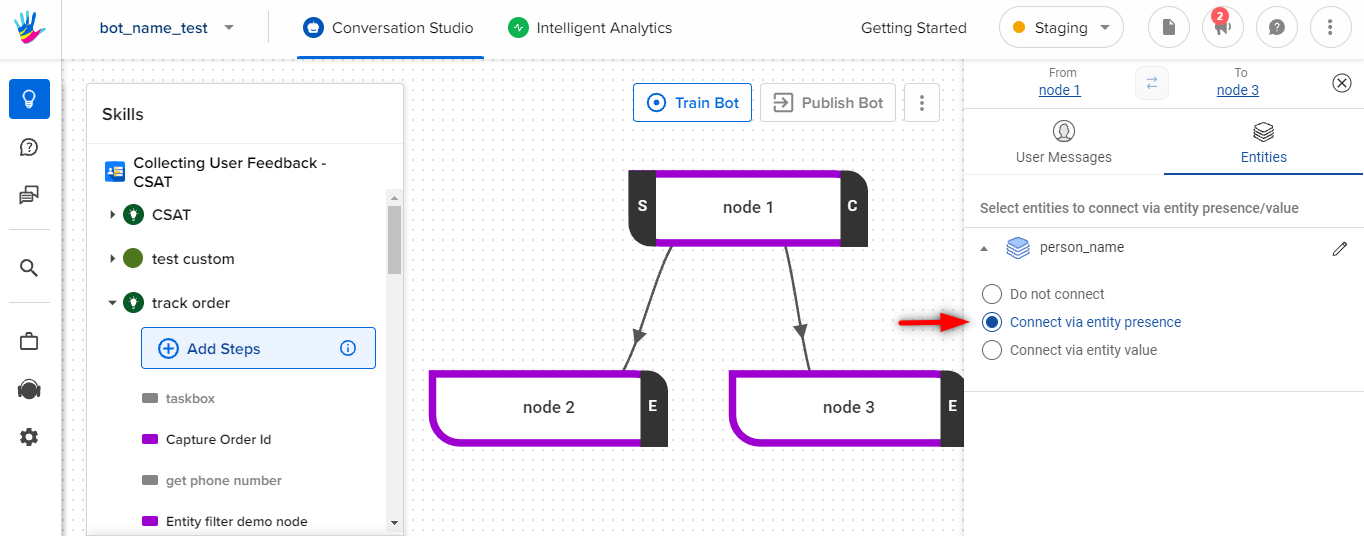
When you’ve added an entity to a conversation, you can define the transition from the step with the entity to the next as only being possible if the user has input a response that falls within the entity. This is particularly helpful when you are setting a conversational flow in which a user needs to input something like a phone number or email ID. All values within the entities are accepted, but the bot will be able to determine whether or not the user has input the correct type of value (i.e. a 9 digit number or a complete email address)
-
When you’ve added an entity to a conversation, you can define the transition from the step with the entity to the next as only being possible if the user has input a response that falls within the entity. This is particularly helpful when you are setting a conversational flow in which a user needs to input something like a phone number or email ID. All values within the entities are accepted, but the bot will be able to determine whether or not the user has input the correct type of value (i.e. a 9 digit number or a complete email address)
-
Connect via entity value:
-
You can create a connection on the basis of a particular value(s) of an entity.
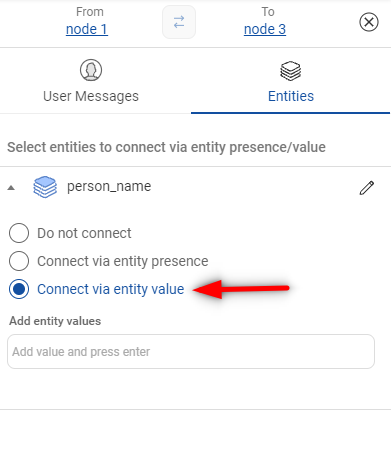
- Here, you add the entity value and press the enter key on your keyboard. You can add multiple values for this entity.
-
You can create a connection on the basis of a particular value(s) of an entity.
The entities from the first step automatically appear in a drop-down menu. Select from the list to complete the creation of a transition based on entity presence.