Canned Responses help agents send rapid and apt responses to the users. The Team Leader can upload the Canned Responses for the team from the Canned Responses section.
How to add Canned Responses?
Click on Admin Settings and go to Canned Responses as shown below:
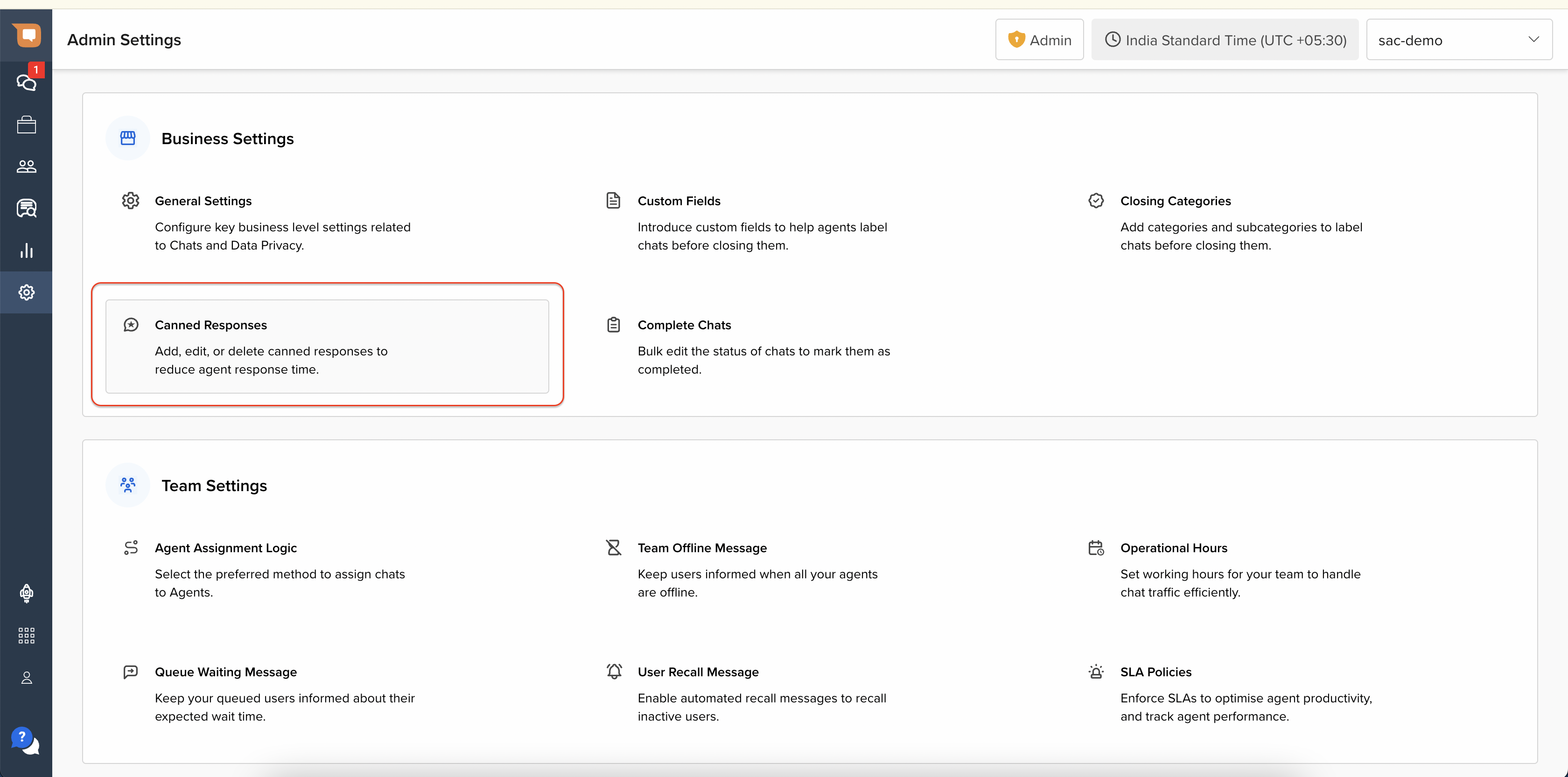
You can either add Canned Response one by one or upload multiple Canned Responses using a CSV.
Add single Canned Response
Click on the Add Canned Response button
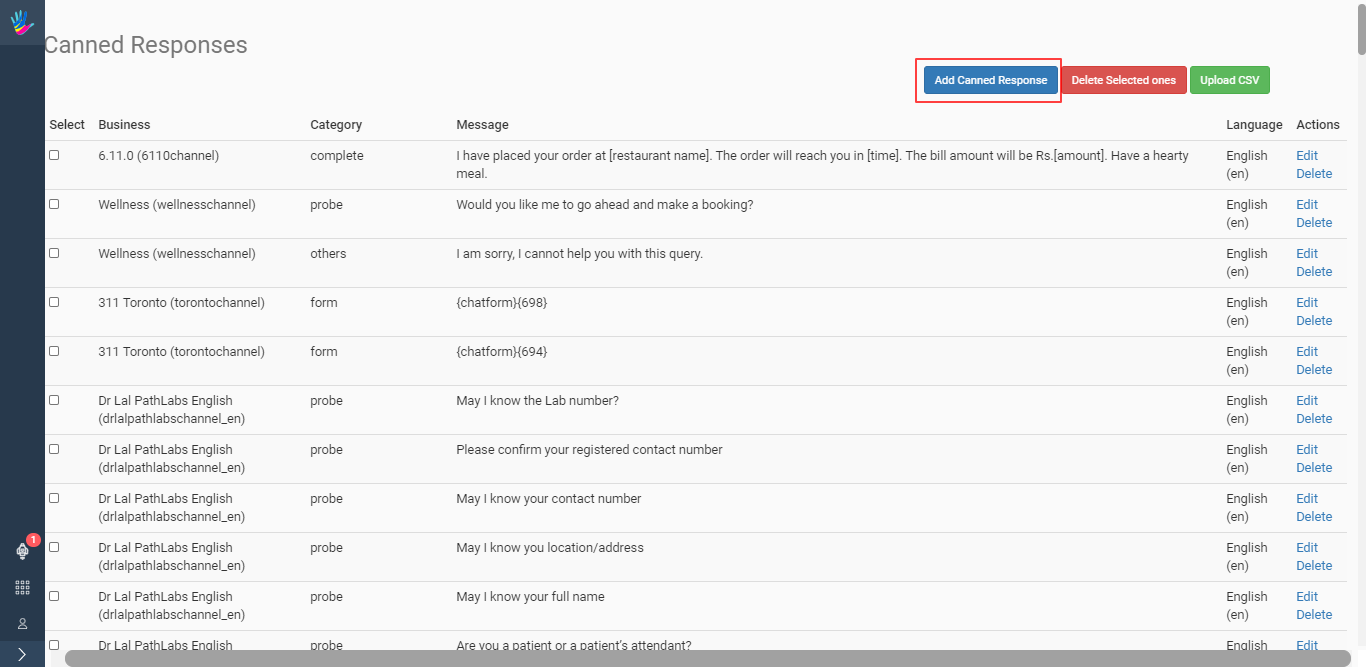
Provide the following details

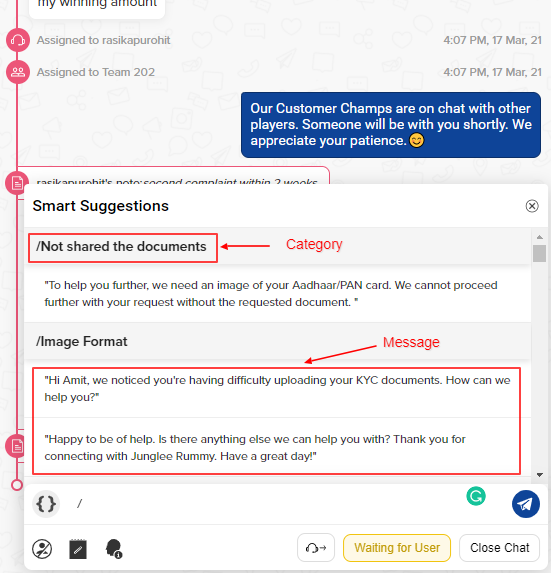
- Business Name: Select your business name from the dropdown.
- Language: Select the language you want to set the Canned Response in.
- Category: Set the Category to which the Message will belong to.
- Message: Set the actual response which the agent can send to the user.
Upload Multiple Canned Responses
You can upload a CSV file to make a bulk upload for all the Canned Responses.
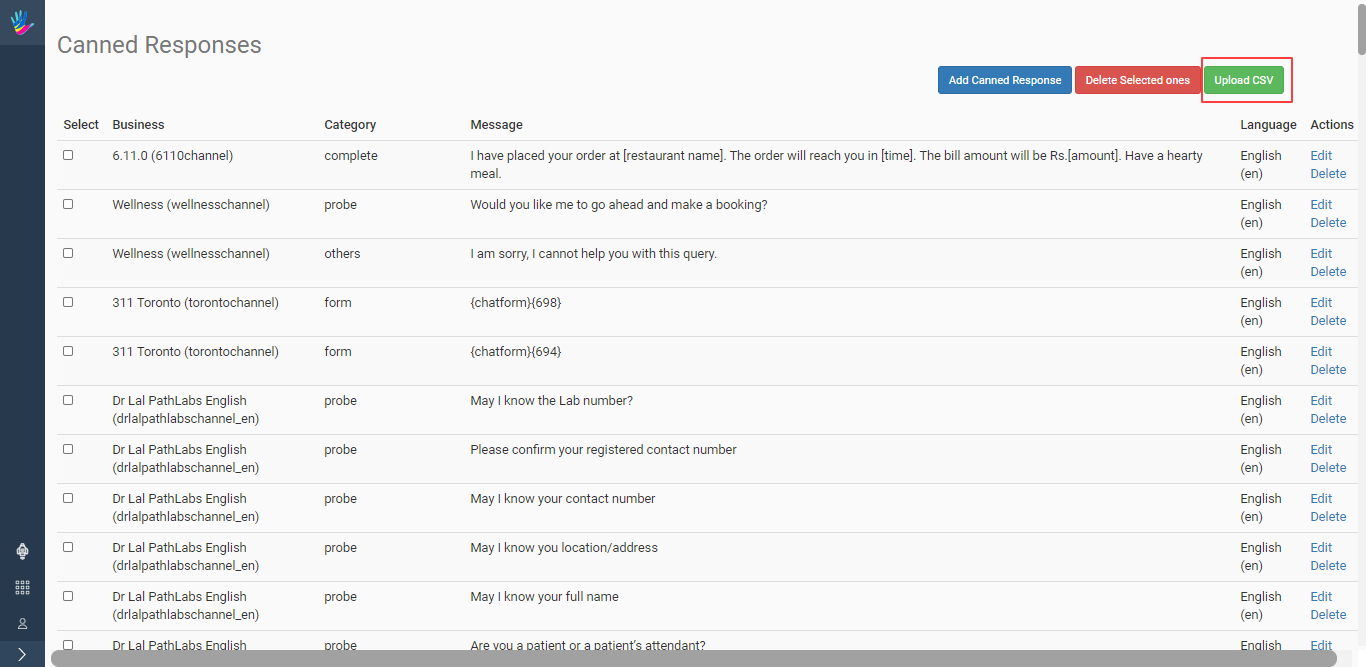
You can download the sample CSV here.
Delete Canned Responses
To delete Canned Responses, select the response(s) from the Select column and then click on the Delete Selected one's button.
