Overview
This section will cover General Settings configured for Businesses. To access these settings, go to the Admin Settings page and navigate to General Settings.
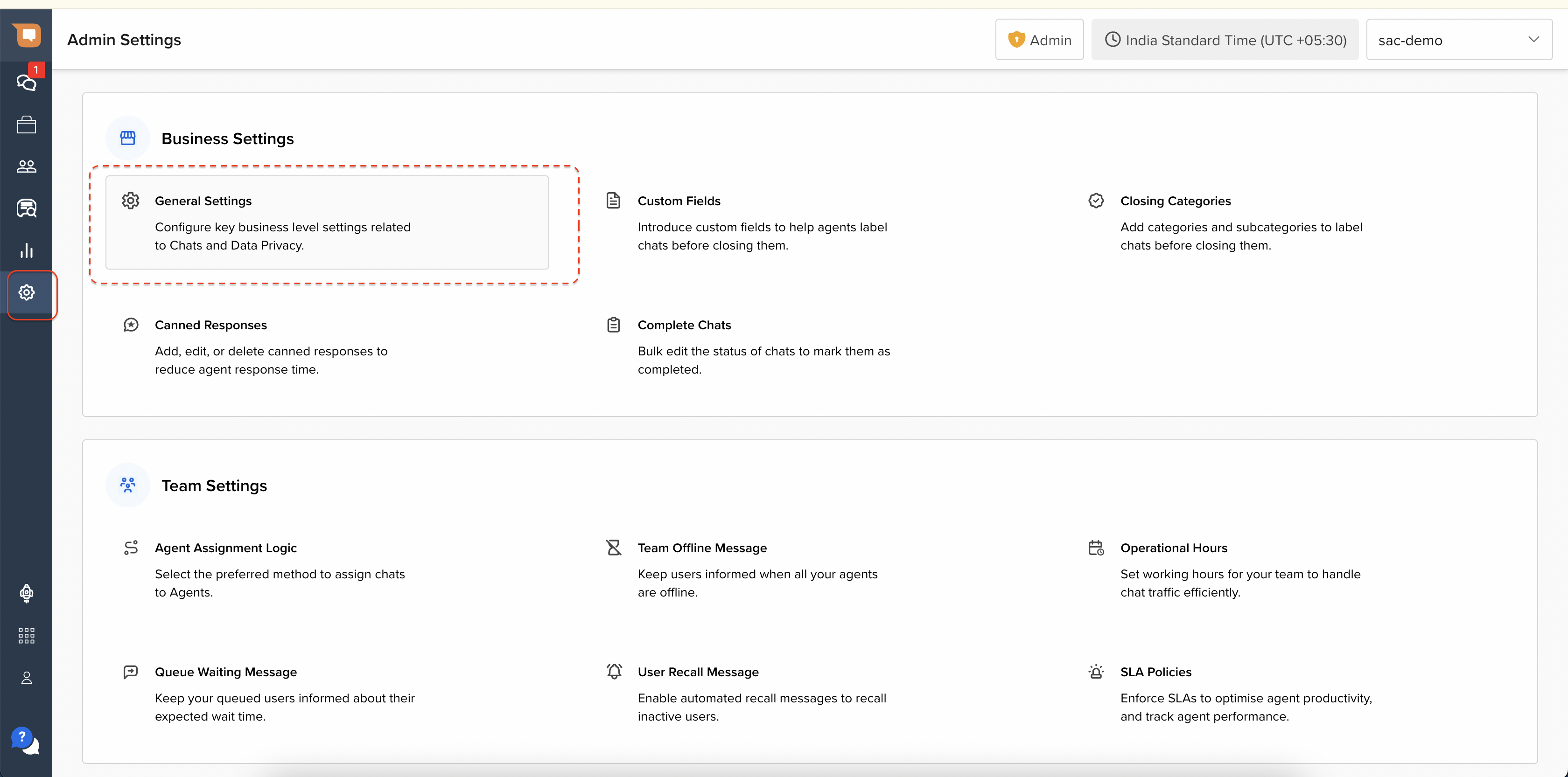
The below screen will appear.
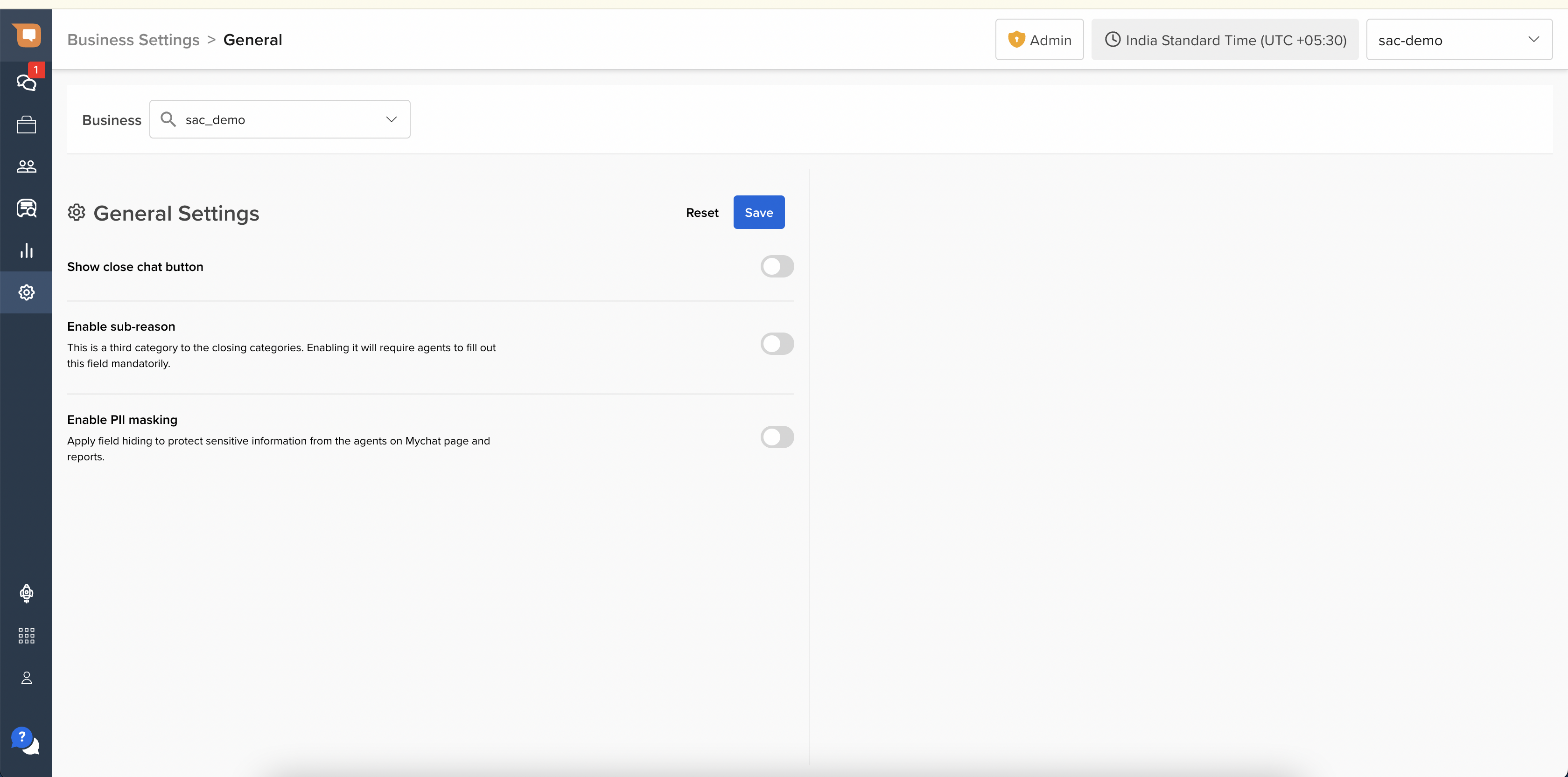
It comprises of three settings to configure, as below:
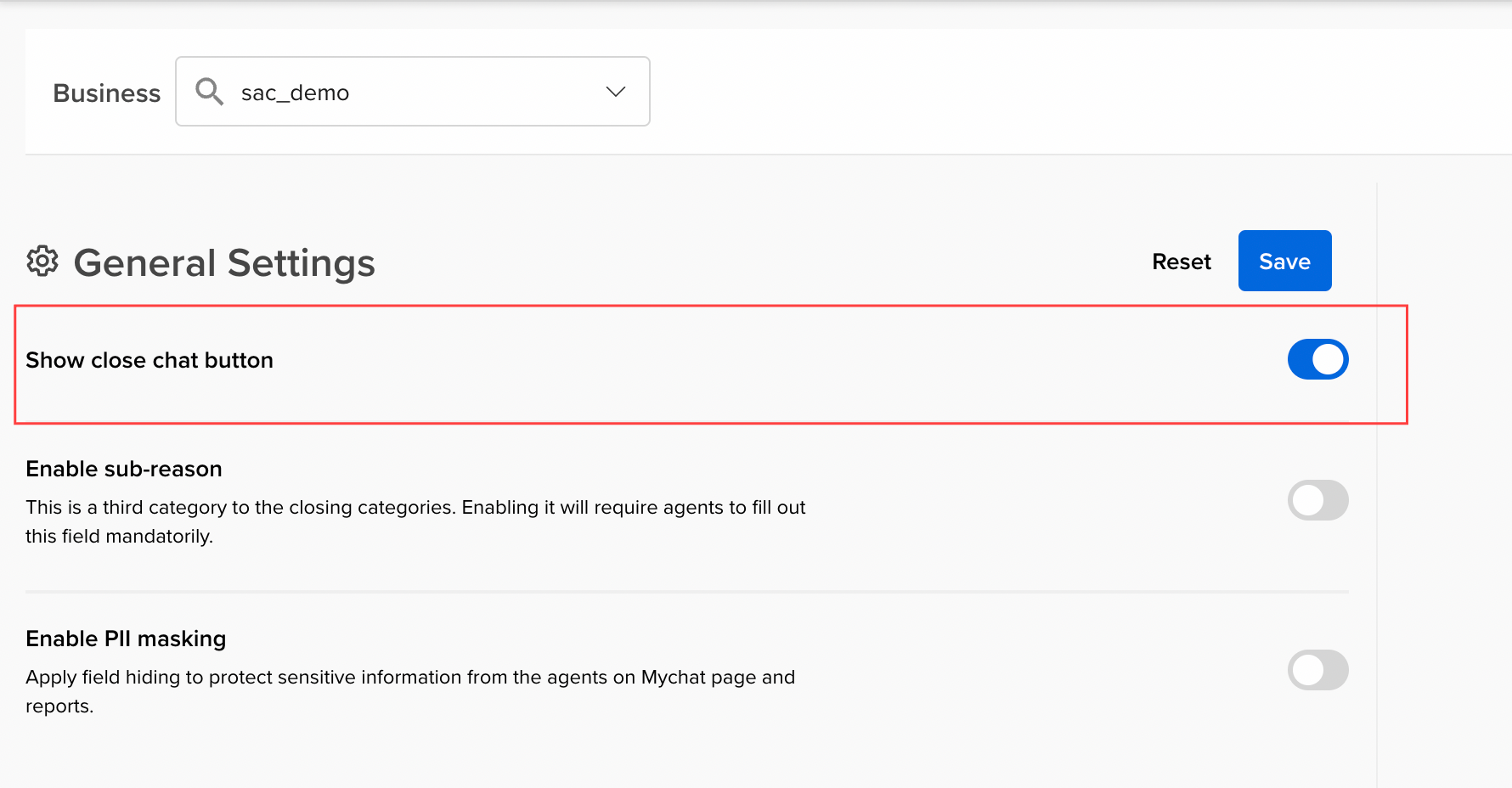
Show close chat button
This is disabled by default. When enabled, it lets you show the Close Chat button on the My Chats tab of your Smart Agent Chat.
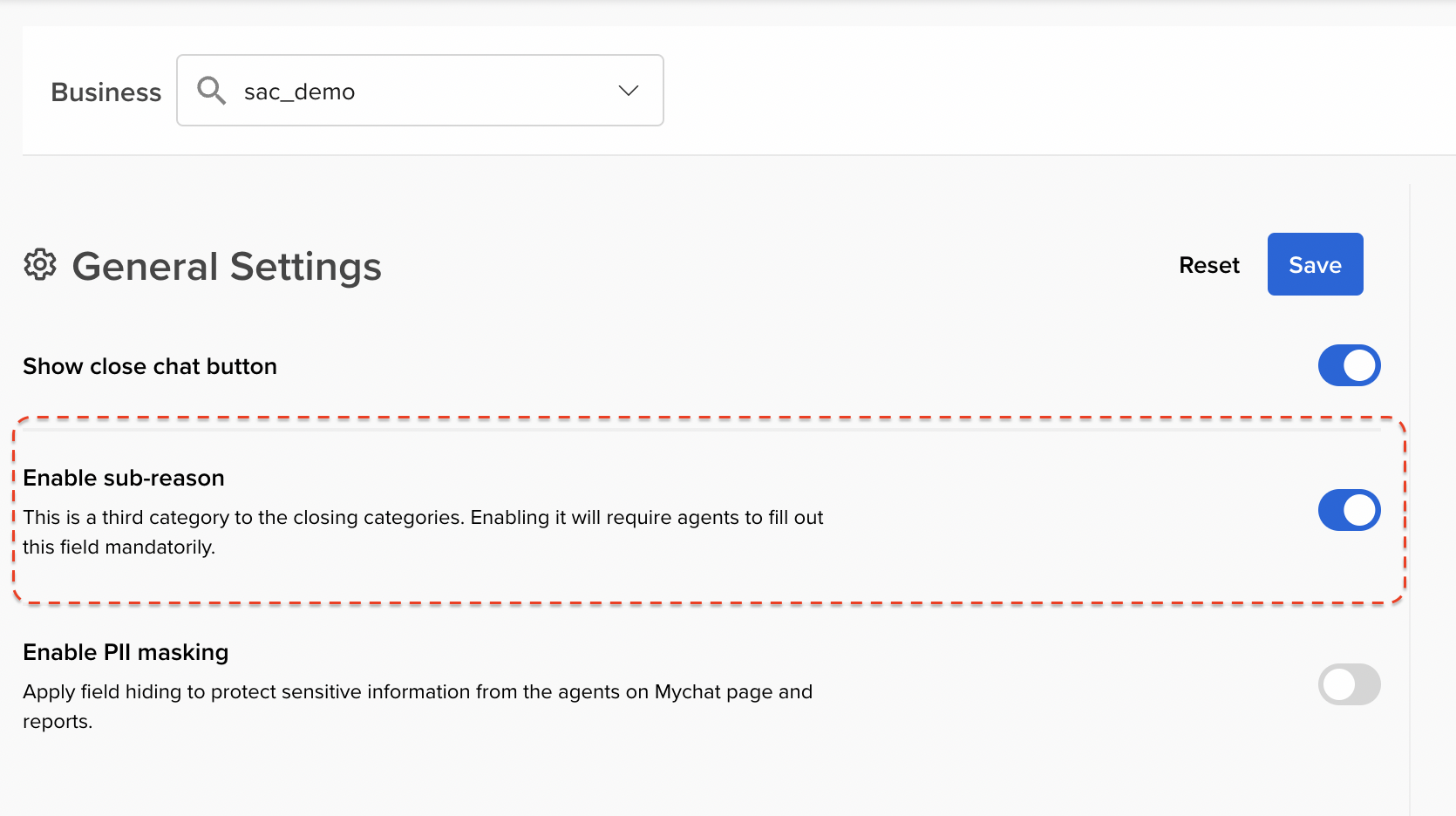
Enable sub-reason
This is disabled by default. When enabled, it lets agents add sub-reason(s) in the Closing Categories.
Enable PII masking
This is disabled by default. When enabled, it lets you Add/Edit Hidden Fields which ultimately gets masked or hidden from the agents, primarily to protect the sensitive information.
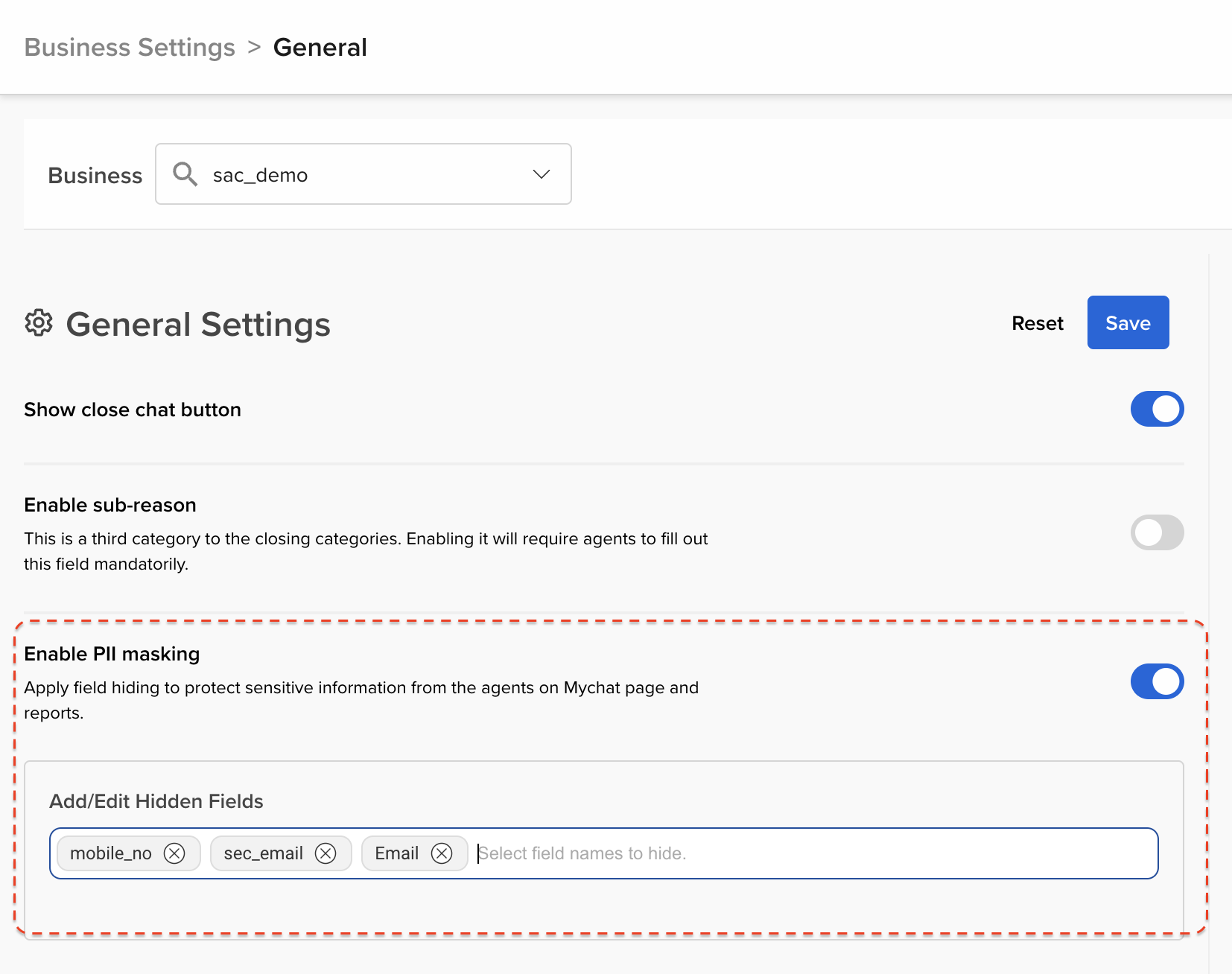
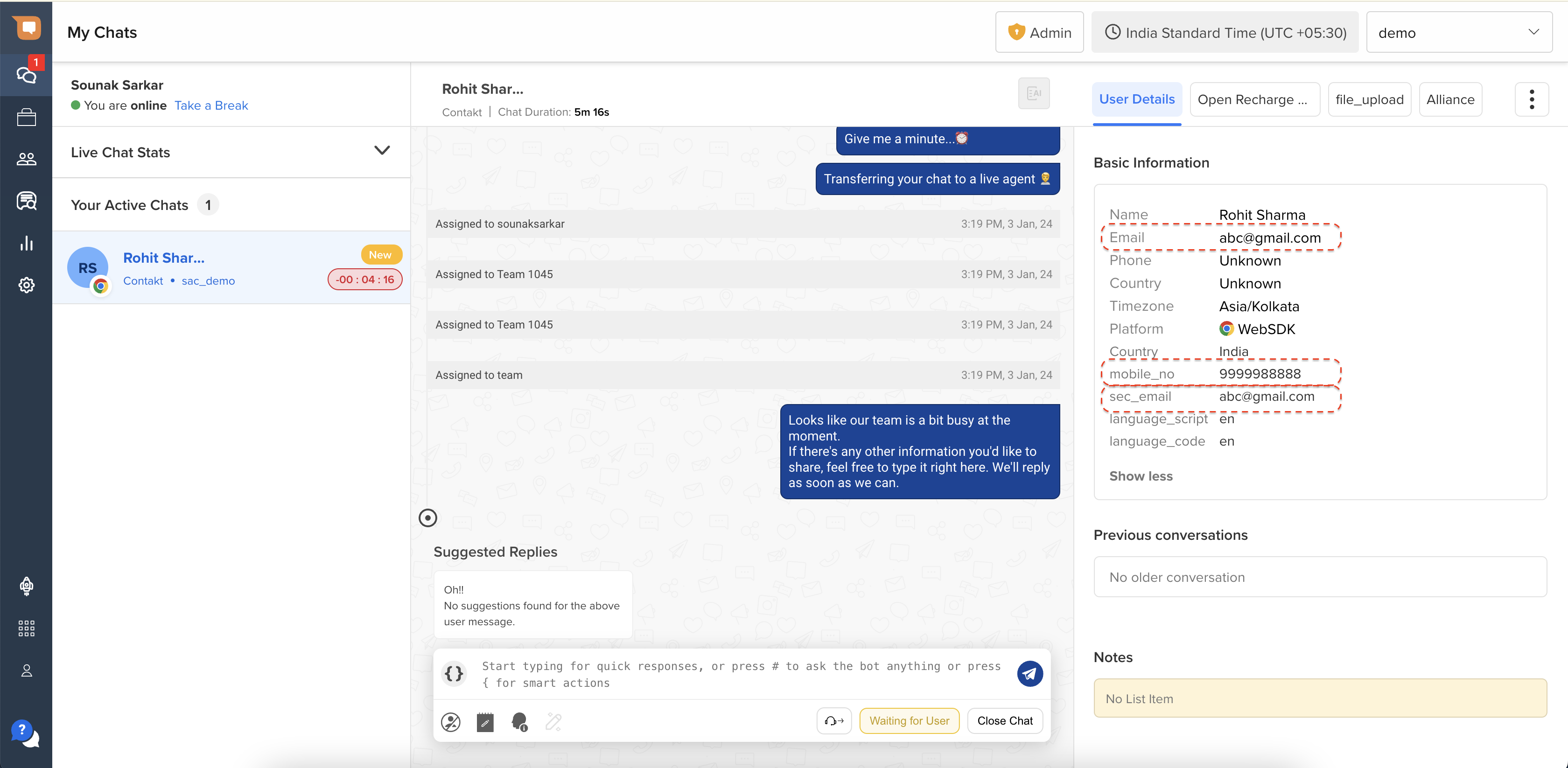
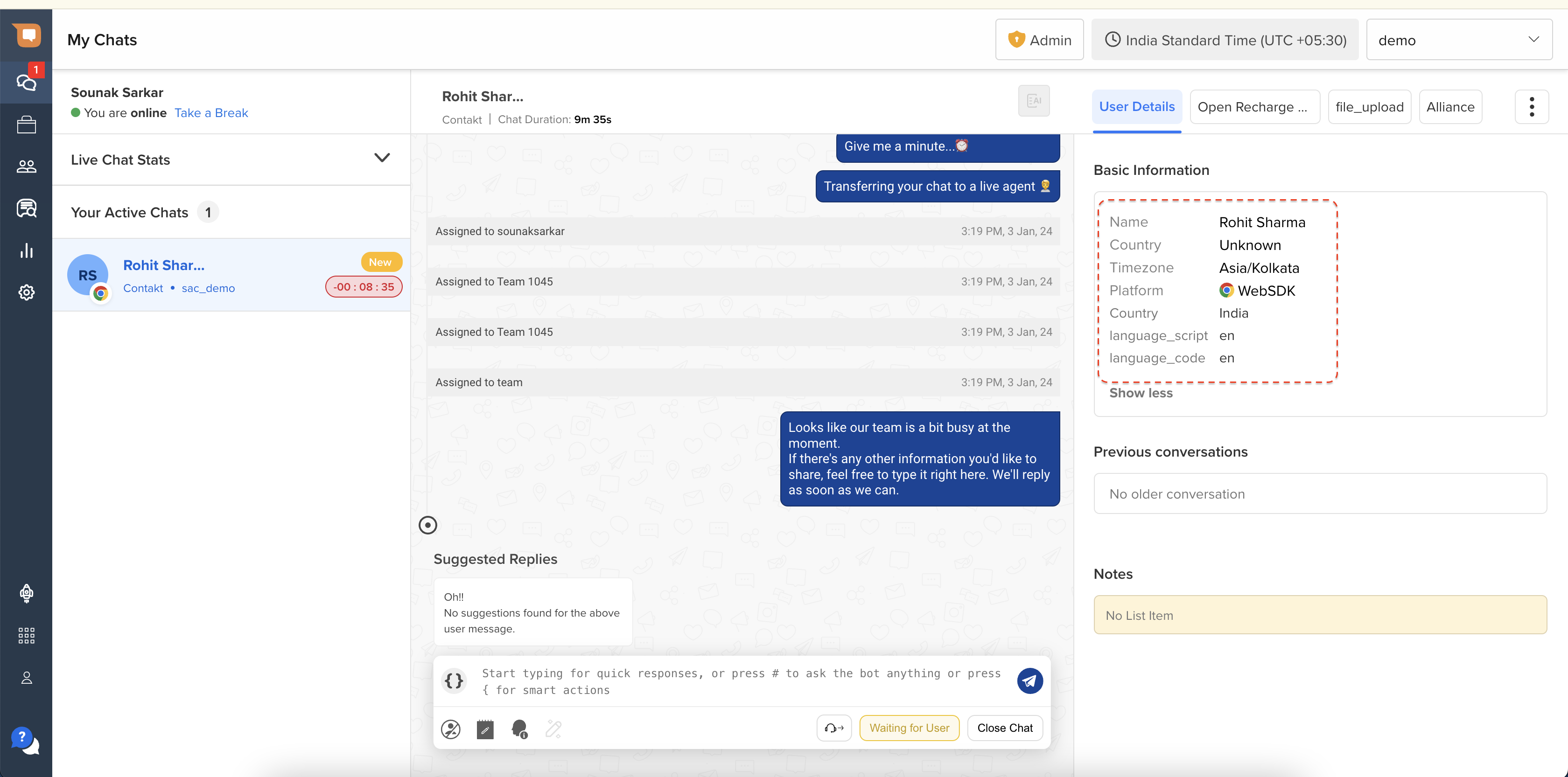
For example, in the above image, we have chosen ‘mobile_no’, 'sec_email', and ‘Email’ as sensitive fields. The chosen fields get hidden from the agent, as can be seen below.
Click Save to save the changes made in the settings. Reach out to your Haptik SPOC for more information regarding this.
Note: Name and Platform fields can’t be masked.