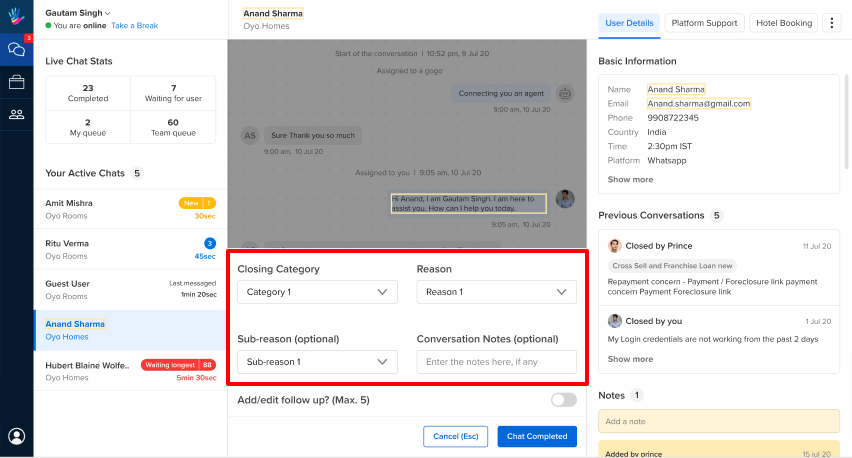
When an agent closes a chat with a user, they have to select a closing category and reason for closing the chat. They can additionally add notes about the conversation.
This data is useful to understand the types of requests users are making, the categories of questions the bot can't handle. Additionally, the conversation notes help any other assistant who might pick up the chat to get a quick context of the previous conversations.
Why are Closing Categories so Important?
As explained earlier, the closing categories data can prove to be extremely useful for the long-term success of the bot.
When we start building a bot, we might not have enough information about the types of conversations the users will try to have with the bot.
For example, you might build a bot to book flight tickets but most users might be trying to get support from your bot instead. The closing category data entered by the agents can then provide data to understand the types of conversations your user have. This data can then be used to try to automate these conversations.
Creating Closing Categories
The Smart Agent Chat tool allows businesses to have custom closing categories for their bots. This enables businesses to gather customized data for their particular use case.
Any Smart Agent Chat tool user with the appropriate permission can create or edit the closing categories for that business.
Steps to Create Closing Categories
Step 1: Open the Smart Agent Chat tool.
Step 2: Go to the Admin Settings section from the left side menu, and go to Closing Categories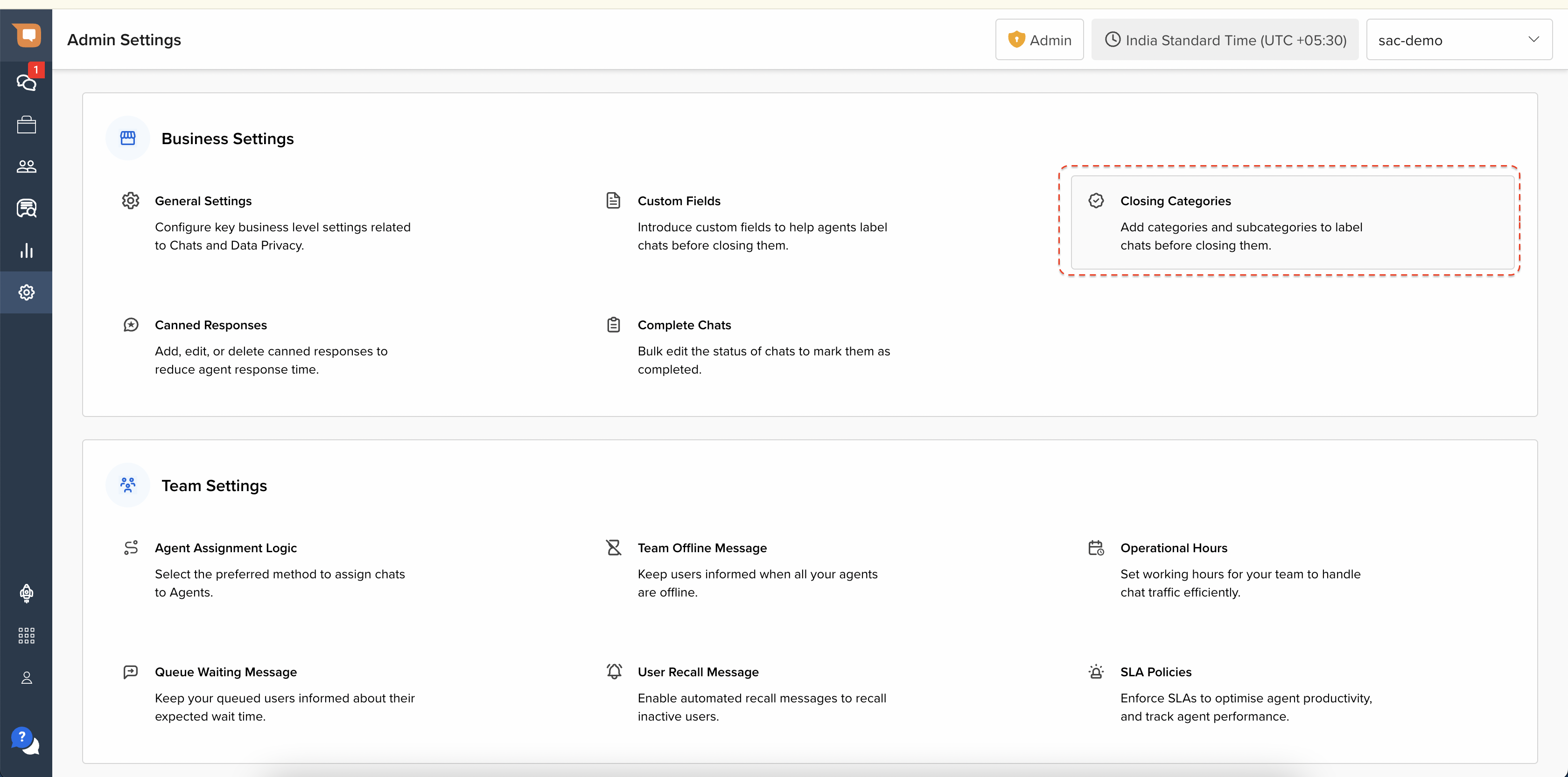
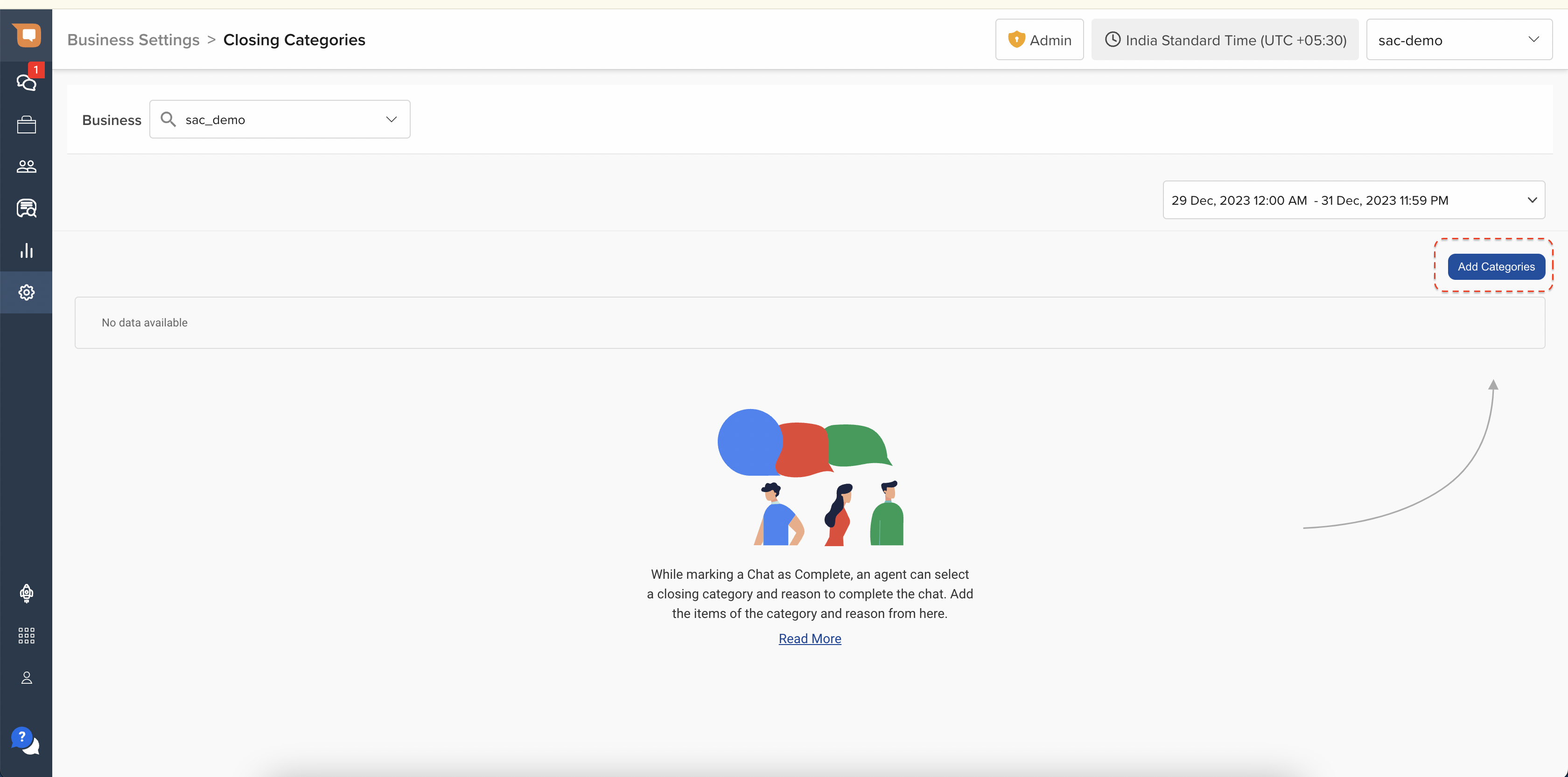
Now, you have two options to create closing categories:
1. Adding closing categories with a CSV file
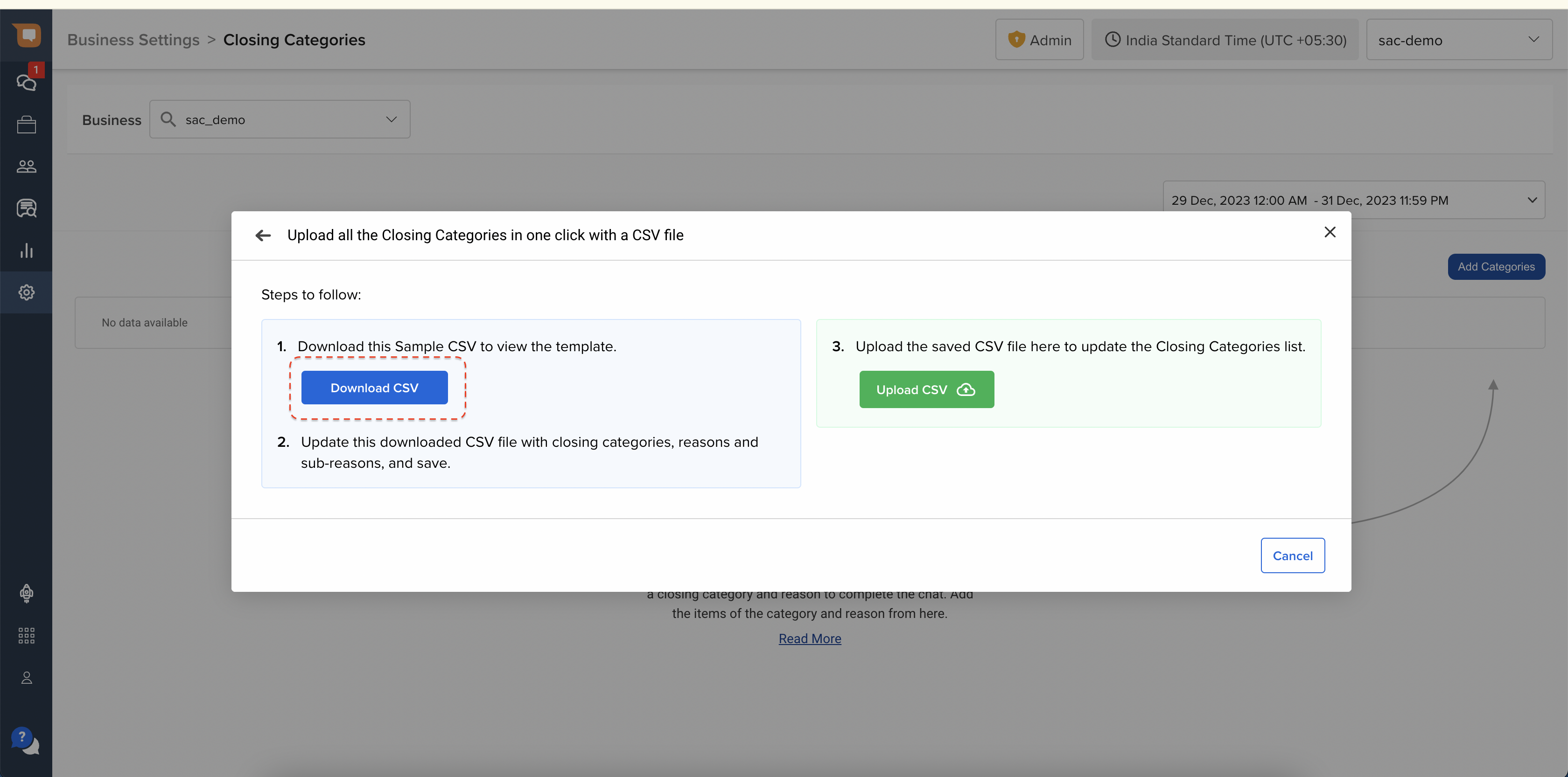
Click Upload CSV and hit the Download Sample CSV to get the template.
Add categories, reasons, and sub-reasons according to the template.
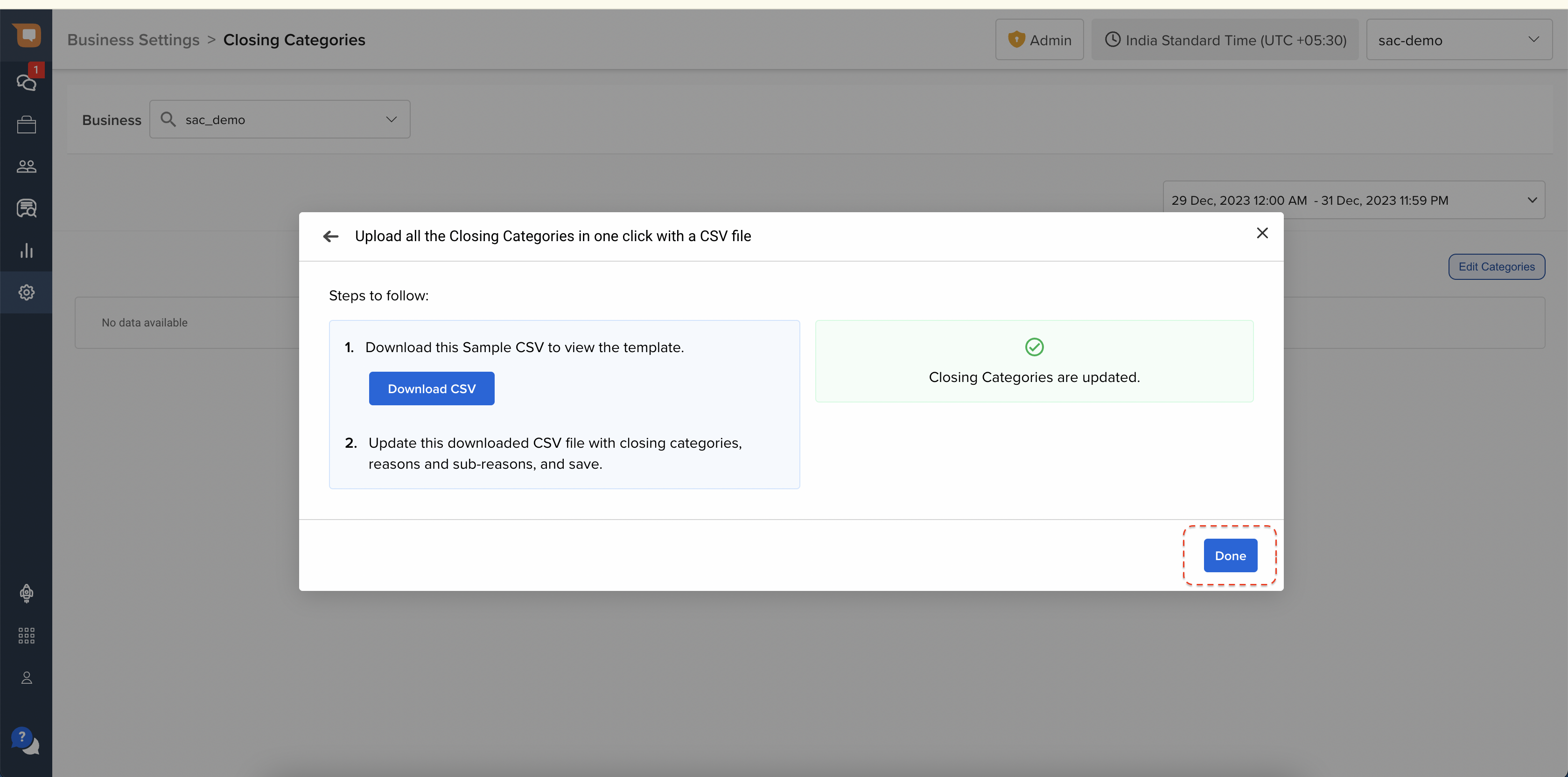
Upload your CSV file.
Click Done once the upload is complete.
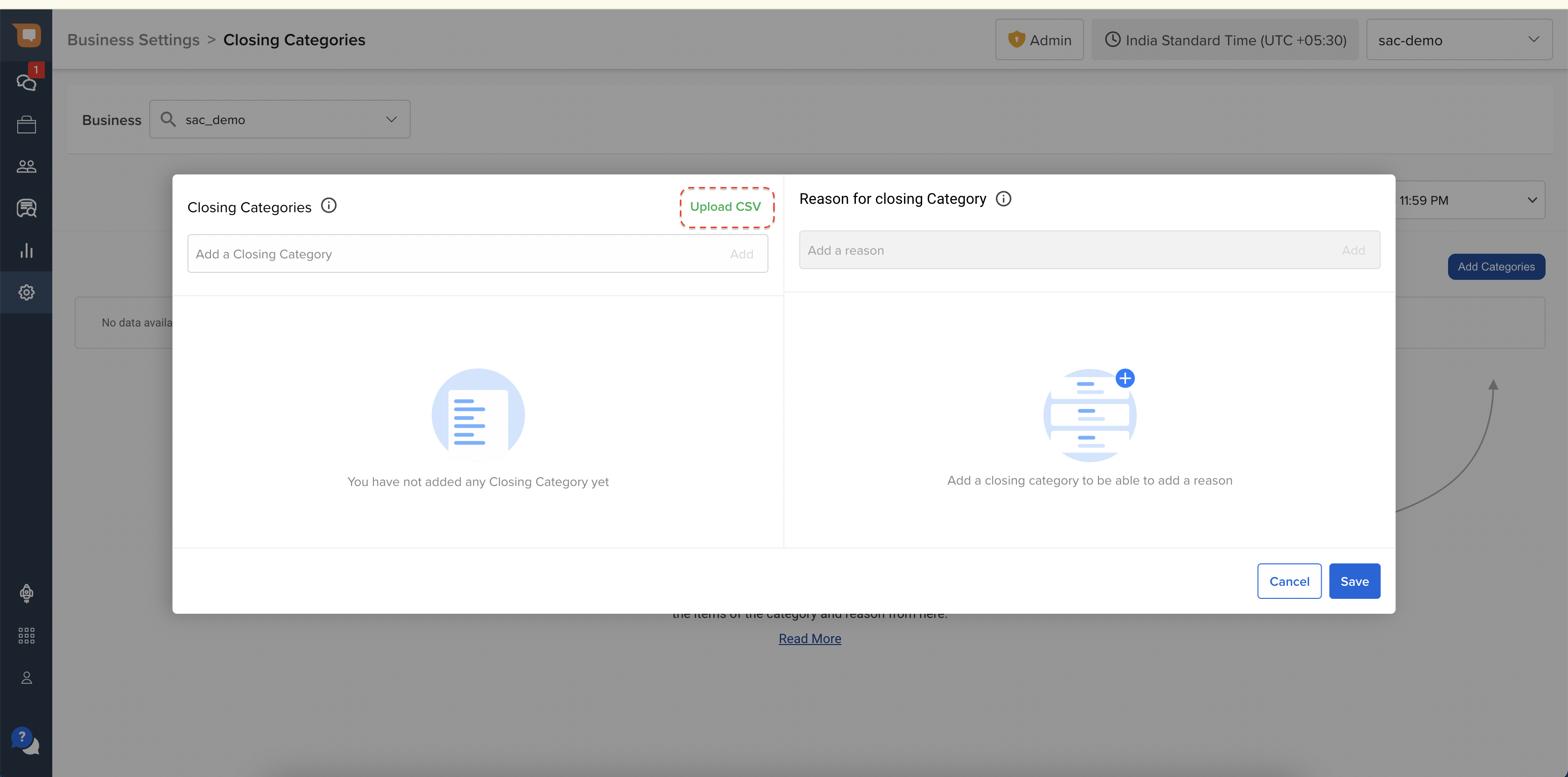
2. Adding closing category one by one
- Input the name you want for your closing category. Once done, click on your added category to introduce reasons and sub-reasons for it.
- After adding closing categories along with reasons and sub-reasons, click Save to finalize your settings.
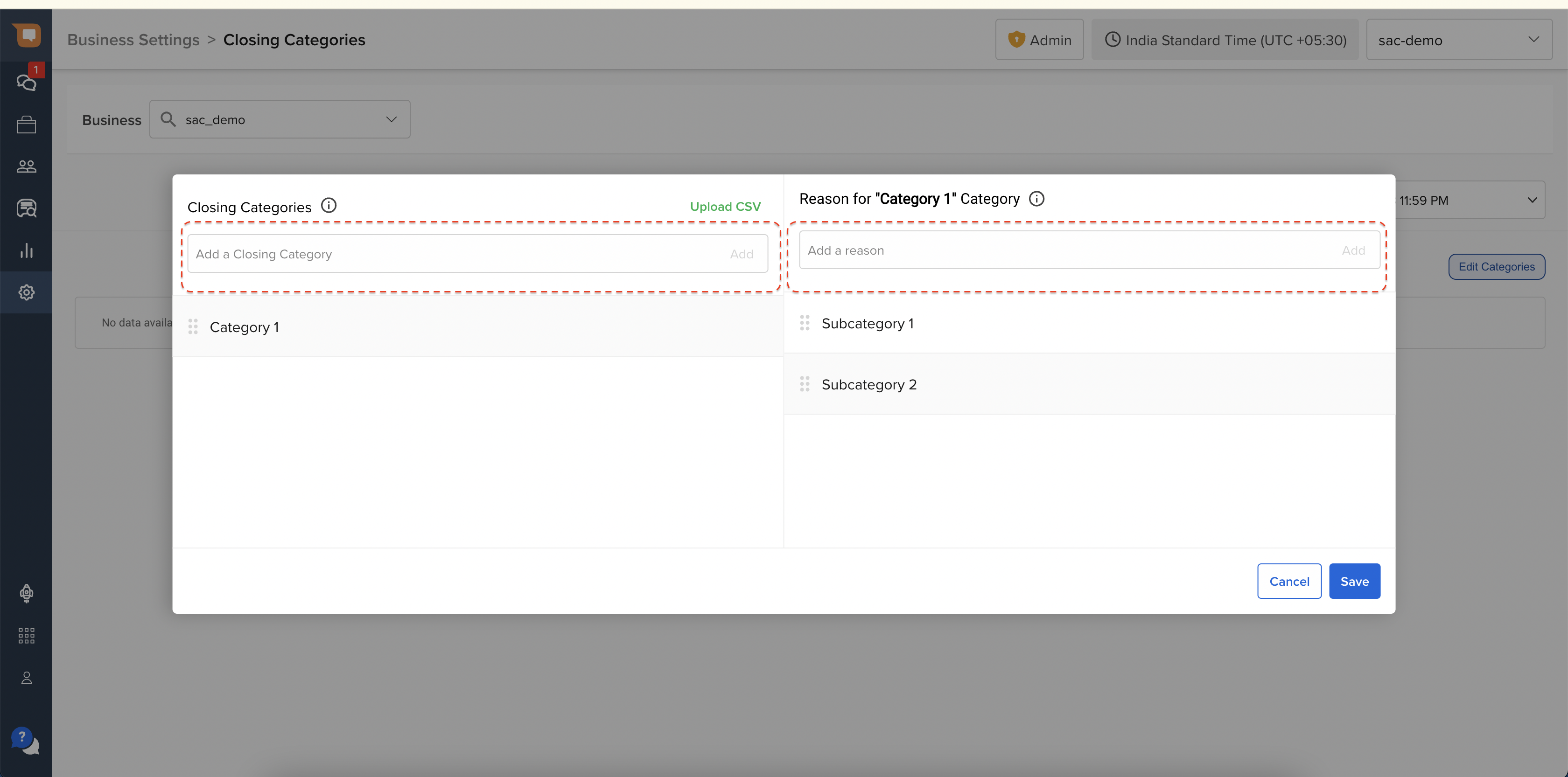
The option of adding a sub-reason is disabled by default. To enable it, go to Admin Settings > General Settings and turn on the Enable sub-reason toggle. Read more about it here.
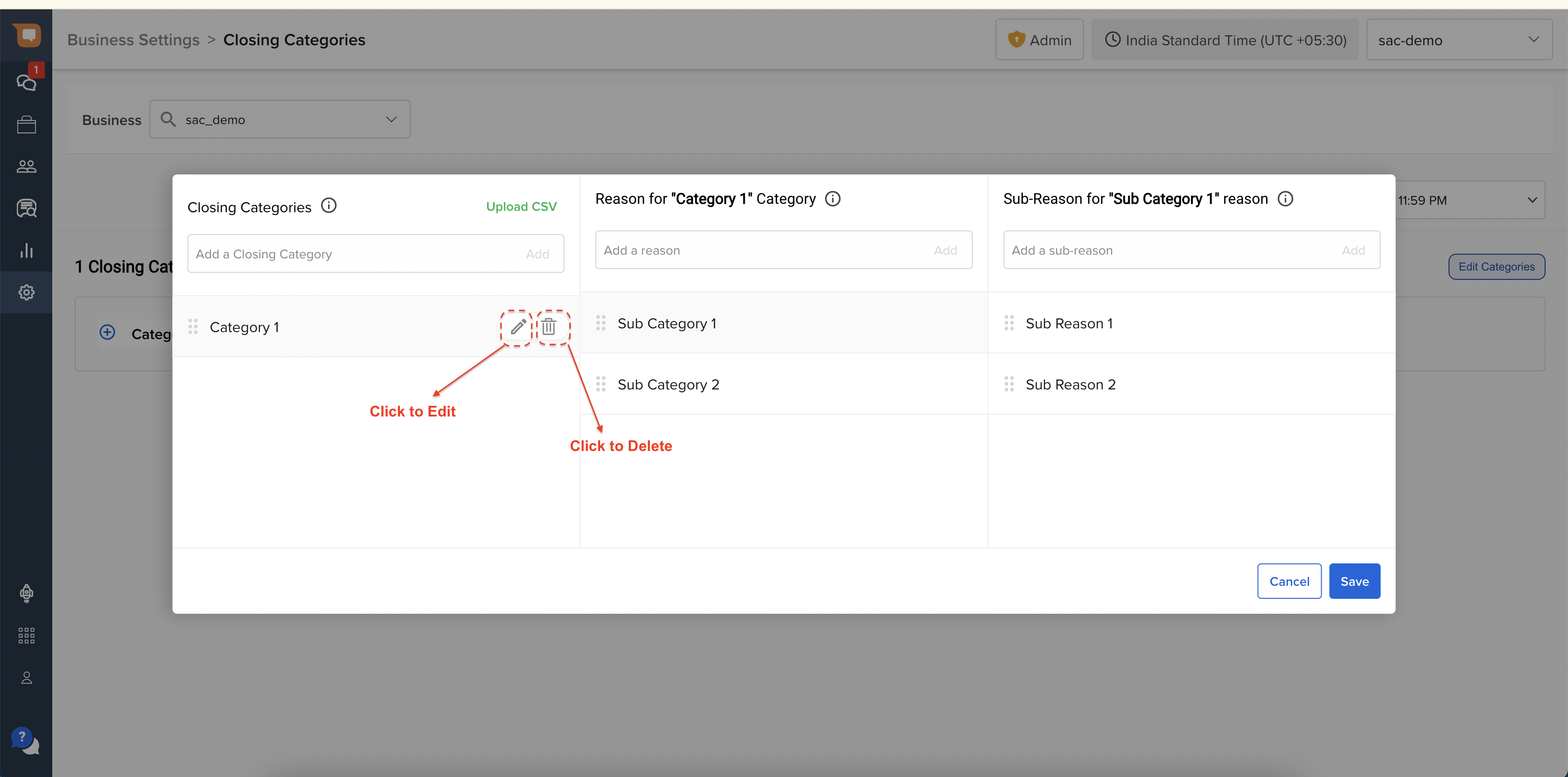
You can edit or delete a closing category by clicking on the edit icon or the delete icon mentioned next to it.
- Once you’re done with adding closing categories along with reasons and sub-reasons, your agents will start seeing the option as shown below: