Overview
You can configure the recall message to get the user back in the conversation. This message is sent once the chat has started with the agent but the user has stopped replying in between to the Agent. The time can be configured between 0s to 8m.
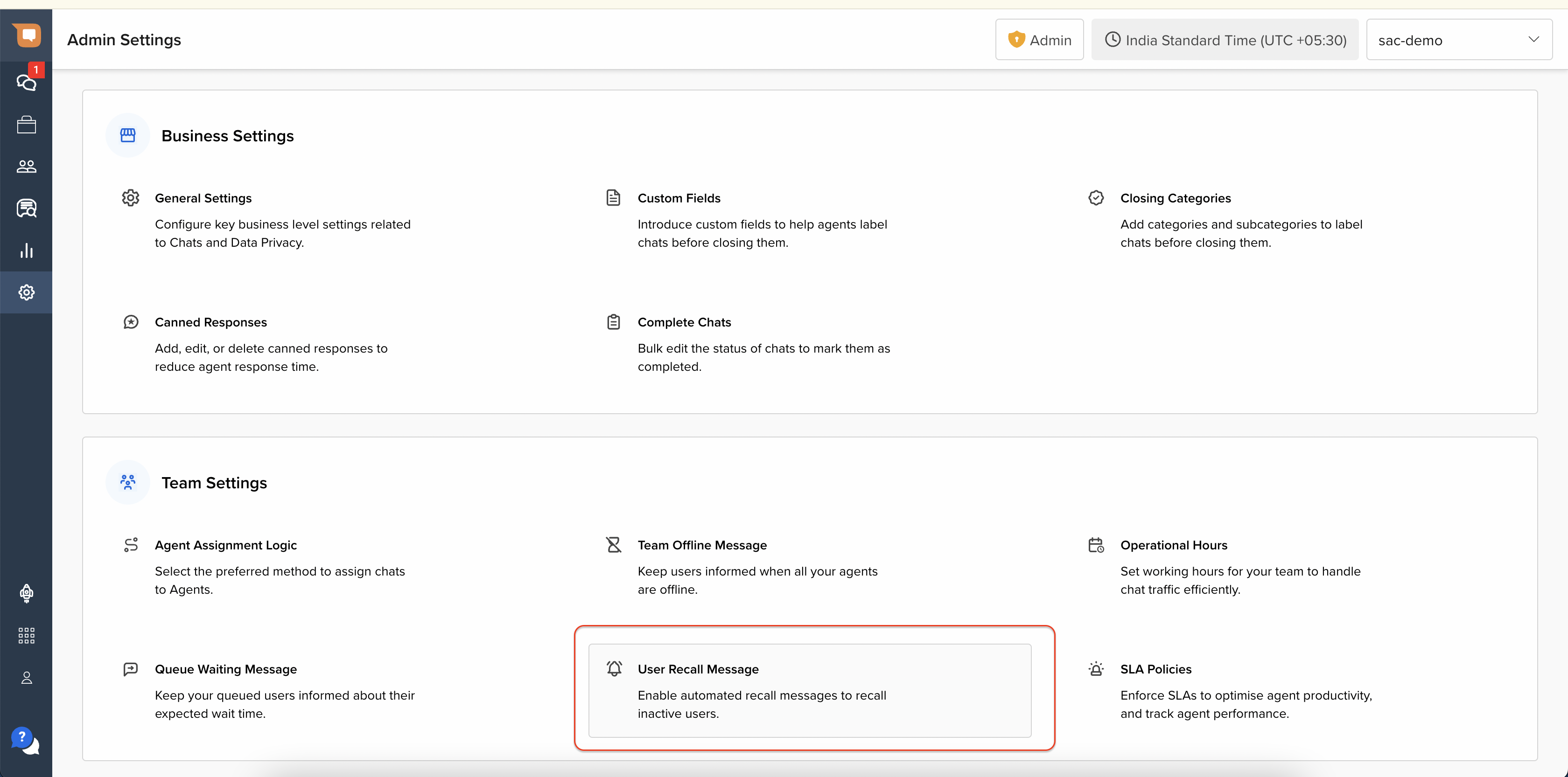
You can access this feature by heading to Admin Settings, and then to User Recall Message under Team Settings:
Steps to set up
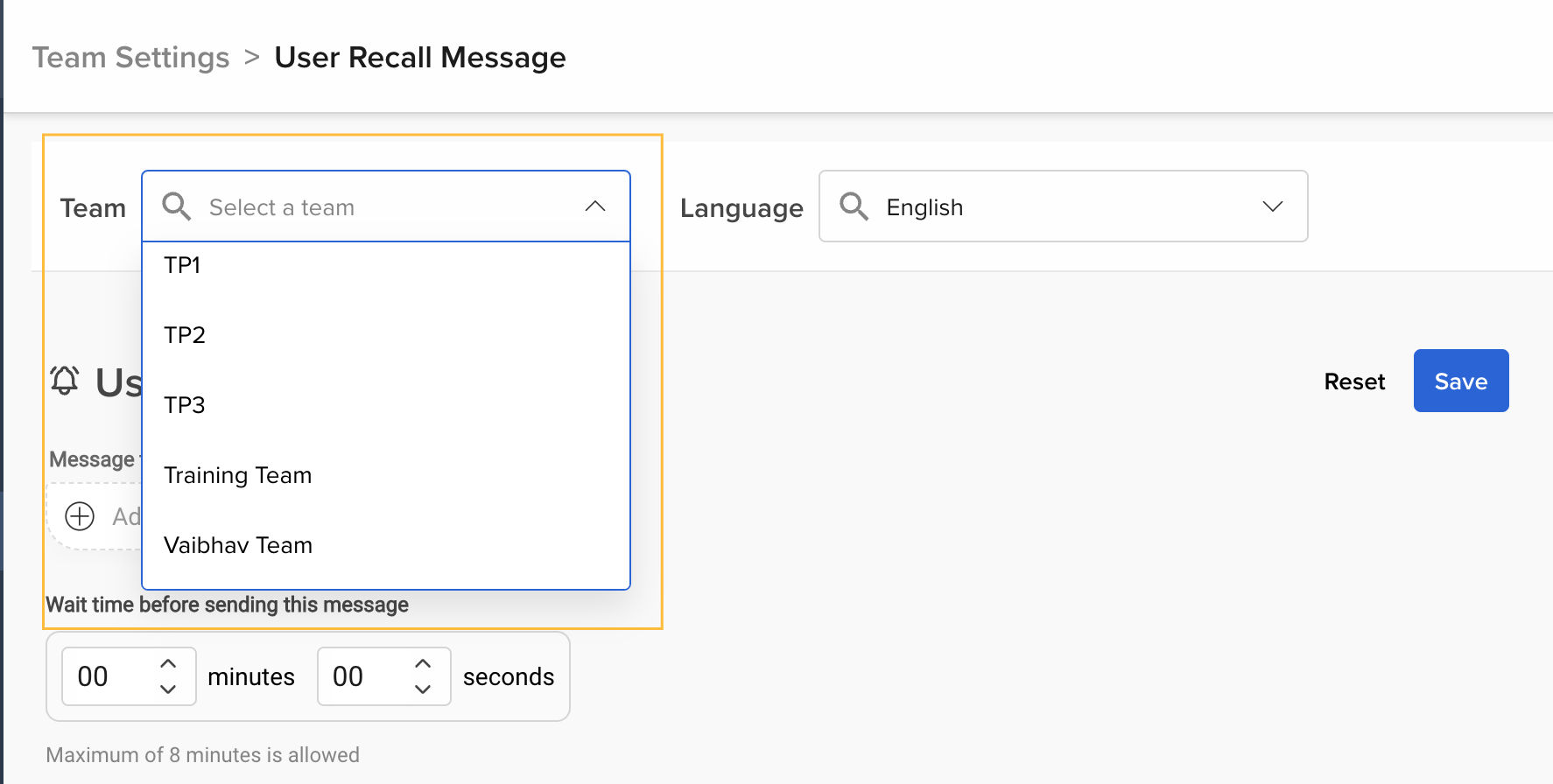
1. First select the relevant Team from the Team dropdown.
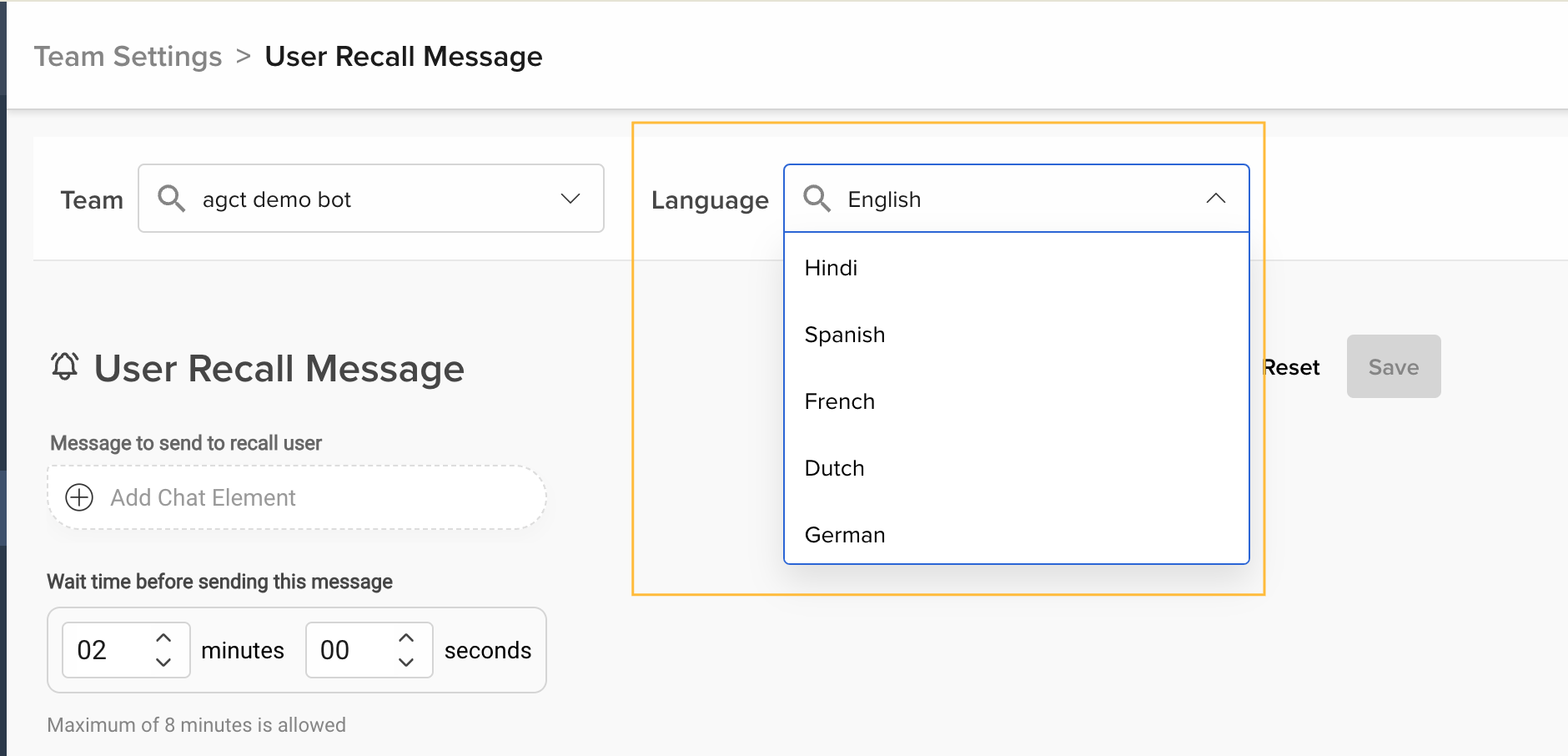
2. If you use a Multilingual IVA, select the relevant language from the Language dropdown.
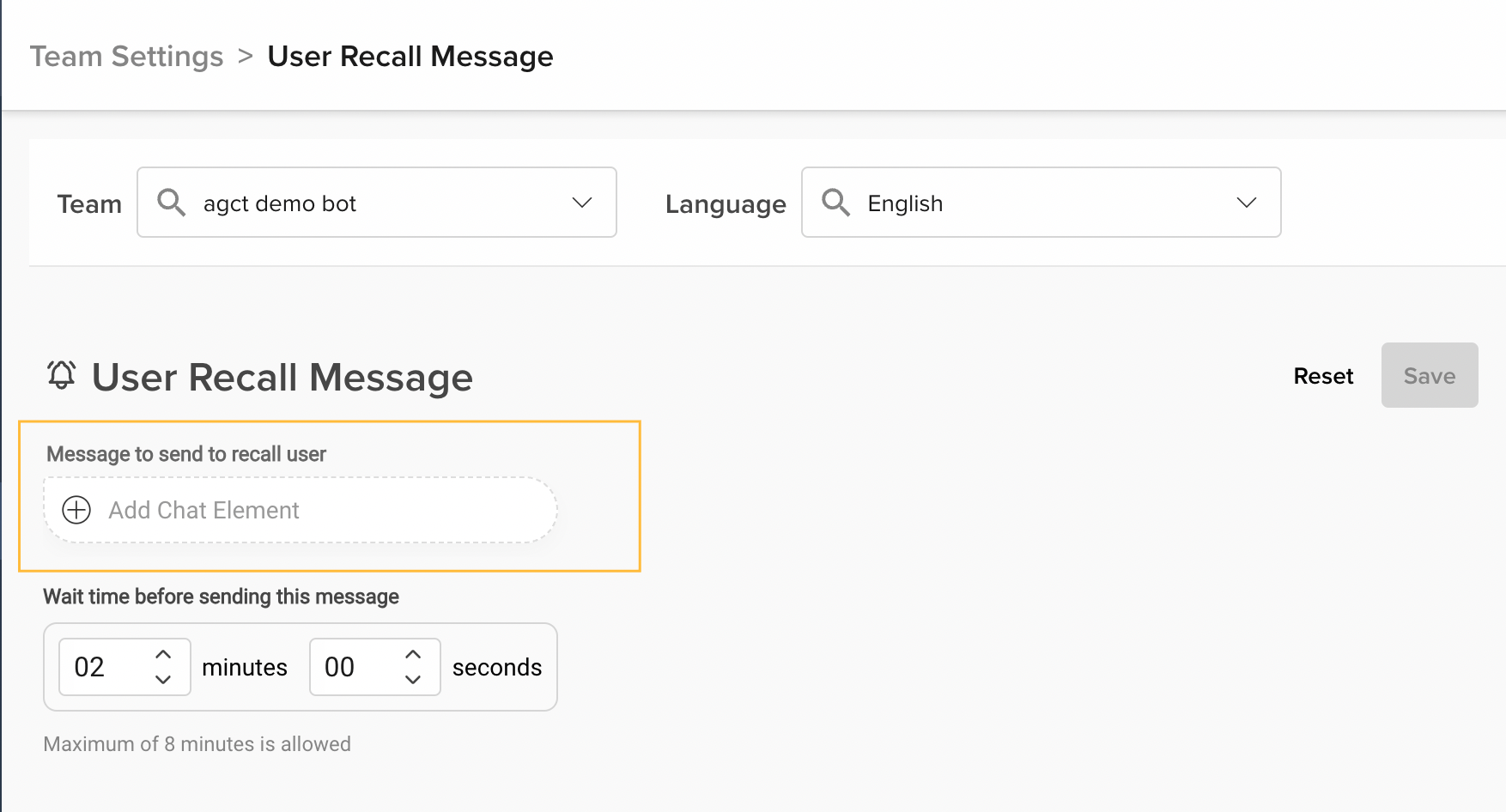
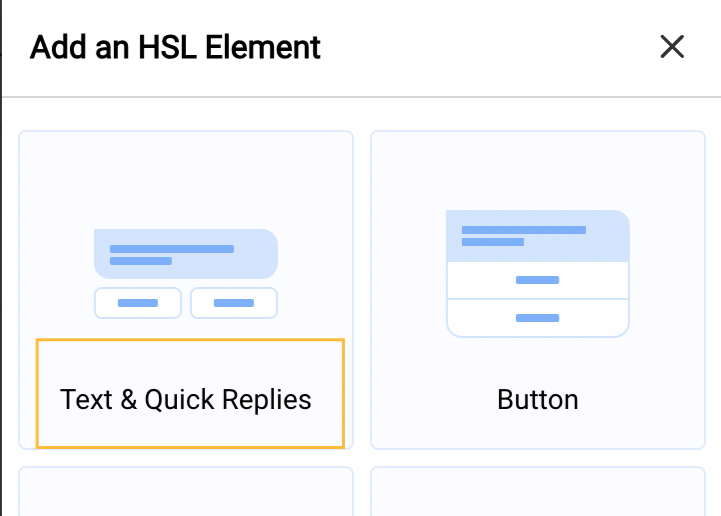
3. Click on “Add Chat Element”, and then select “Text & Quick Replies” to configure your message.
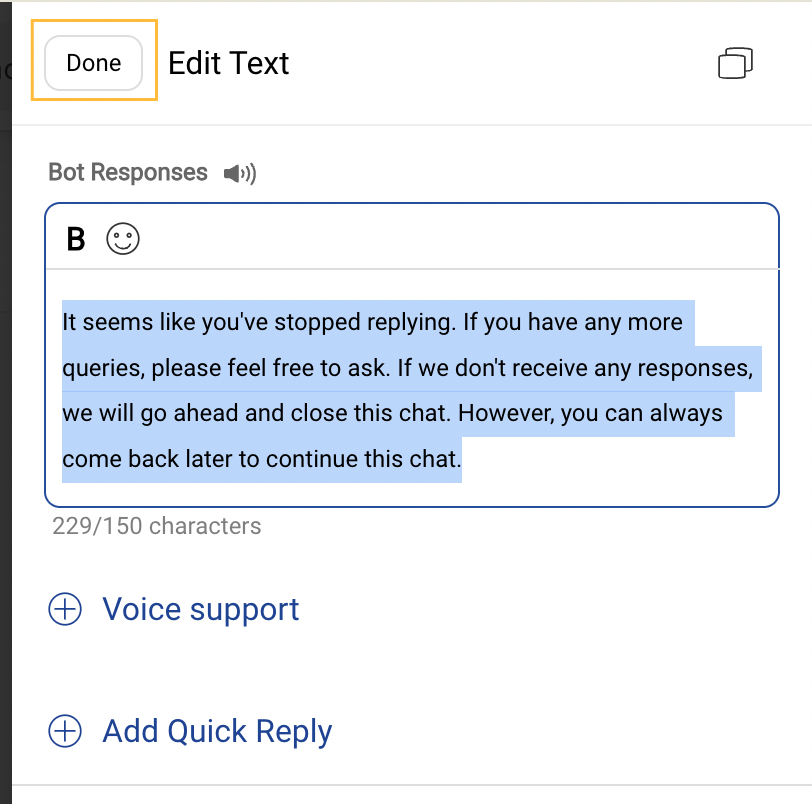
4. Once your message is set, click on “Done” to save the Message.
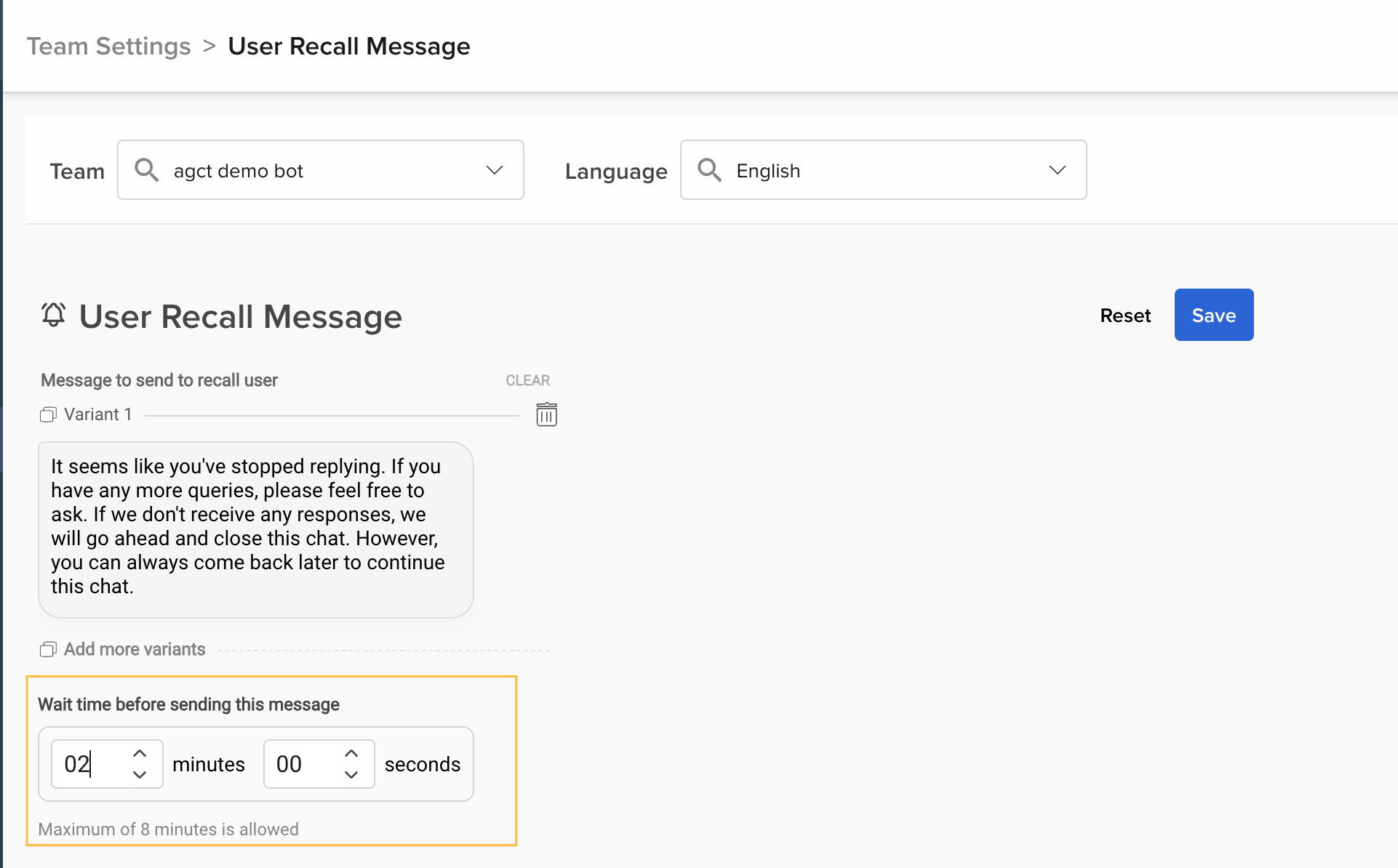
5. Finally, set the delay after which the recall message has to be sent to the customer. This can be set to a maximum of 8 minutes.
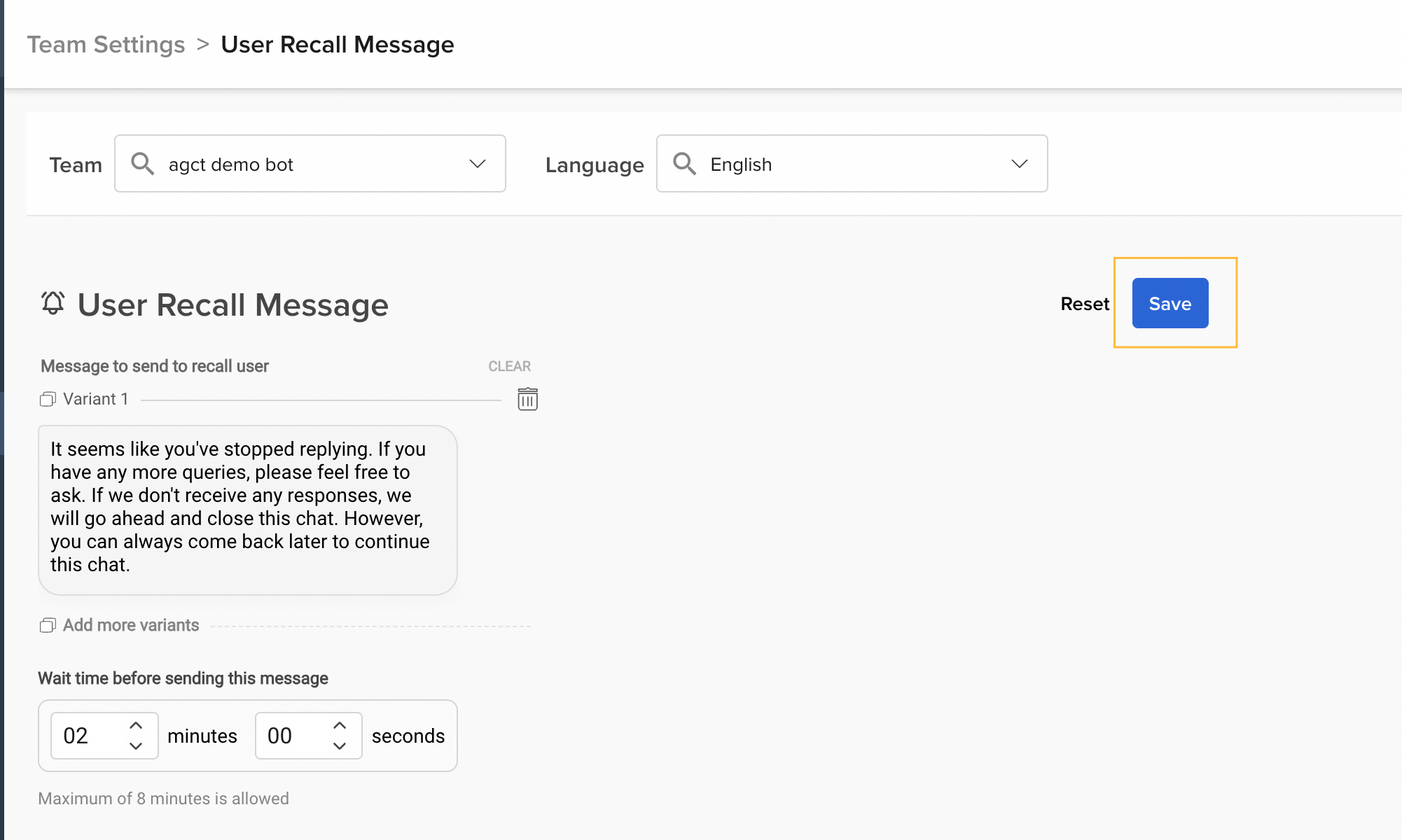
6. Finally, click on “Save” to apply these settings for your Team.
With these steps, your set up of the User Recall Message will be complete.
Repeat the same steps to set your recall messages for multiple Teams and Languages using the respective dropdowns.