Point to note: This only works for Static steps.
Graph steps are basic static steps that we use in the graph of the Conversation Studio tool and it follows the same principle of User Messages, Bot Responses, and Start Steps to detect steps, reply back to the user, update the chat status and also support the API Integrations.
Why do we need the Graph Step uploader tool?
To handle the scenarios where we need to create a large number of steps in one go, we can use graph step uploader tool.
How to Access Graph Step Uploader tool?
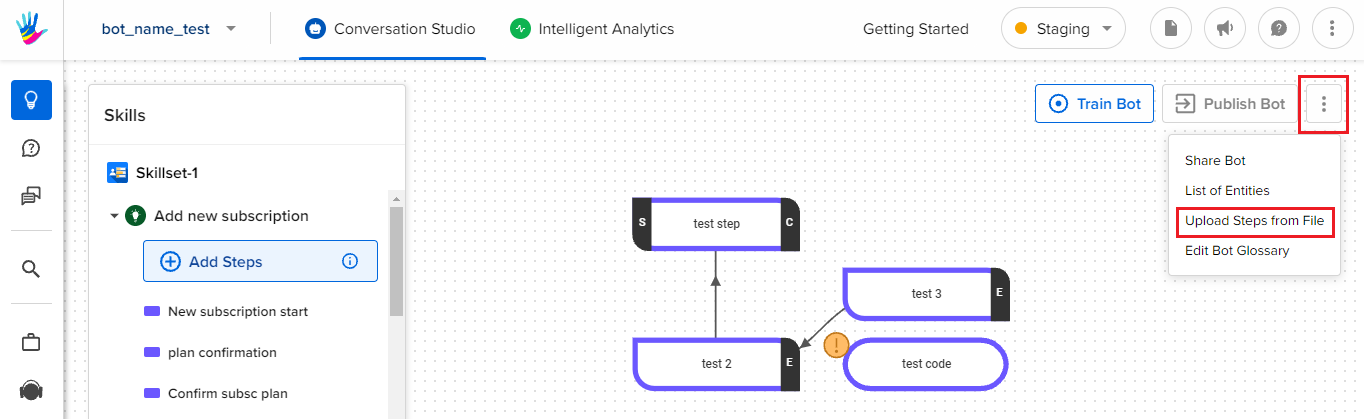
- On your bot's graph screen, select the three dots, beside the Publish Bot button, as shown. You will see Upload Steps from file option.
CSV Format

1. step_name: Name of the step, step name should be unique
2. question(User Messages): Independent Responses under User Messages to detect this FAQ nov
3. answer(bot response): A step can have single or multiple bot responses, to pass multiple bot responses use `<m>` tag as delimiter
4. quick_replies: Add Quick replies to continue the conversation flow
5. link_text: This is the text that appears with the Button HSL
6. link_button: This text appears on the button
7. link_url: This is the URL for redirection on the click of the button
quick_replies, link_text, link_button, link_url are optional columns.
Sample FAQ Uploader
You can download a sample CSV file from here.
Points to note:
- The CSV can be uploaded only once, i.e., if want to reupload the same CSV file, the bot will throw an error.
- All step names should be unique.
- Do not add emojis in the
link_buttoncolumn.